

Add a trip
Click Travel in the menu and then Add trip. The map on the right shows the route as you fill it in.
The screenshots show heyArtist in Danish; the labels are named in English here as they appear when you switch the app to English.
The route
Section titled “The route”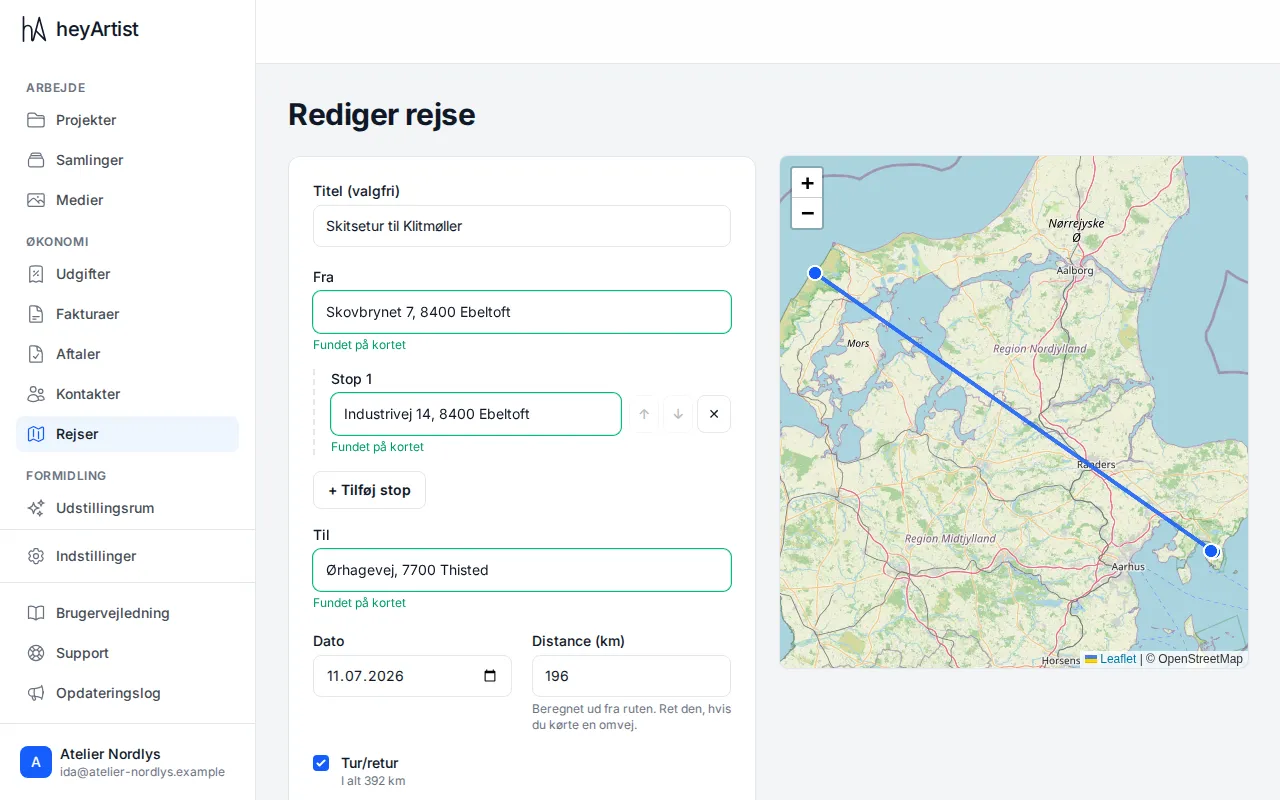
- If you like, give the trip a Title, such as Sketching trip to Klitmøller. It is optional, but makes the trip easier to recognise in the journal.
- Type where you went From and To. Once a place is found on the map, the field turns green and says Found on the map.
- If you stopped on the way, click + Add stop. You can move a stop up and down with the arrows and remove it with ✕.
- Pick the Date.
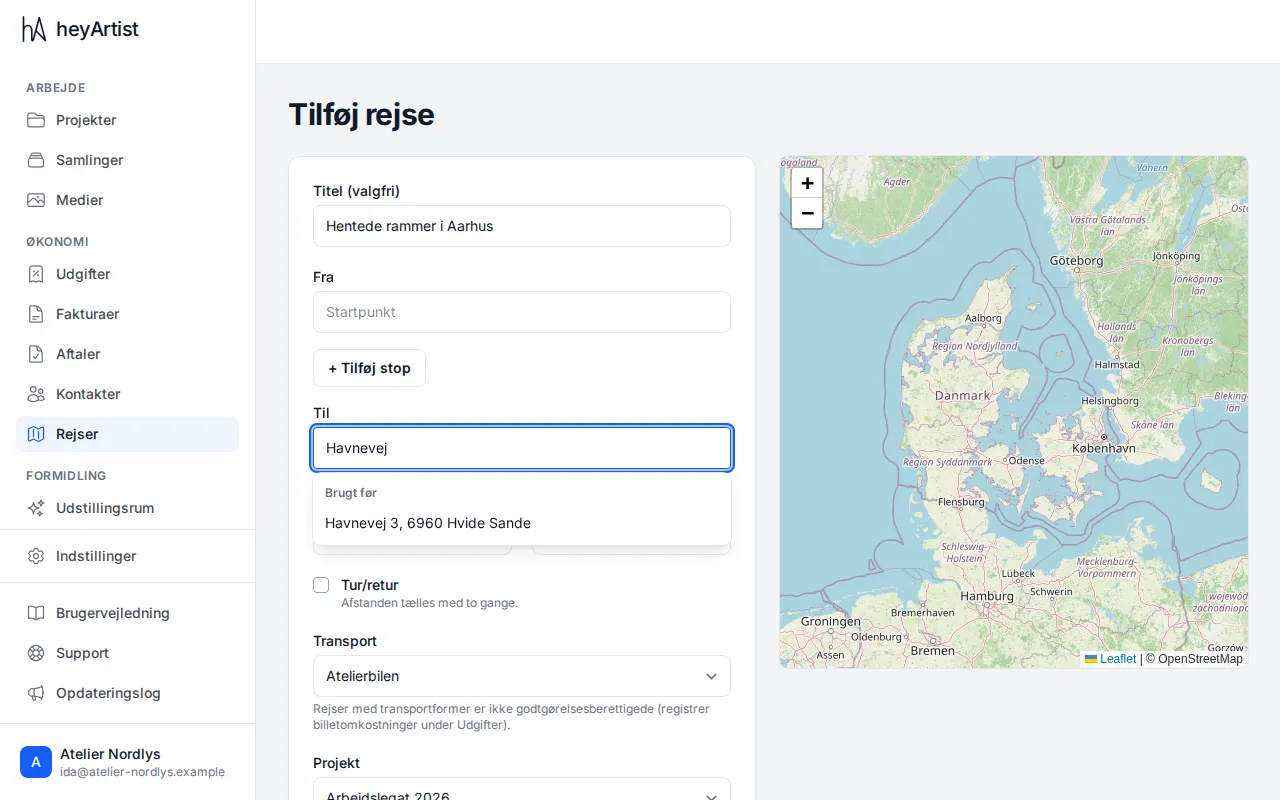
Once you have typed three letters, heyArtist suggests places. Under Used before are addresses from your earlier trips, and under Suggestions addresses found on the map. Click a suggestion to pick it.
The distance
Section titled “The distance”Once the start and the destination are found on the map, heyArtist works out the Distance (km) one way along the route, and it says Calculated from the route. If you took a detour, correct the figure. If the route cannot be calculated, you type the distance yourself.
Tick Return trip if you drove the same way home. The distance then counts twice, and the total number of kilometres is shown under the field.
Transport and project
Section titled “Transport and project”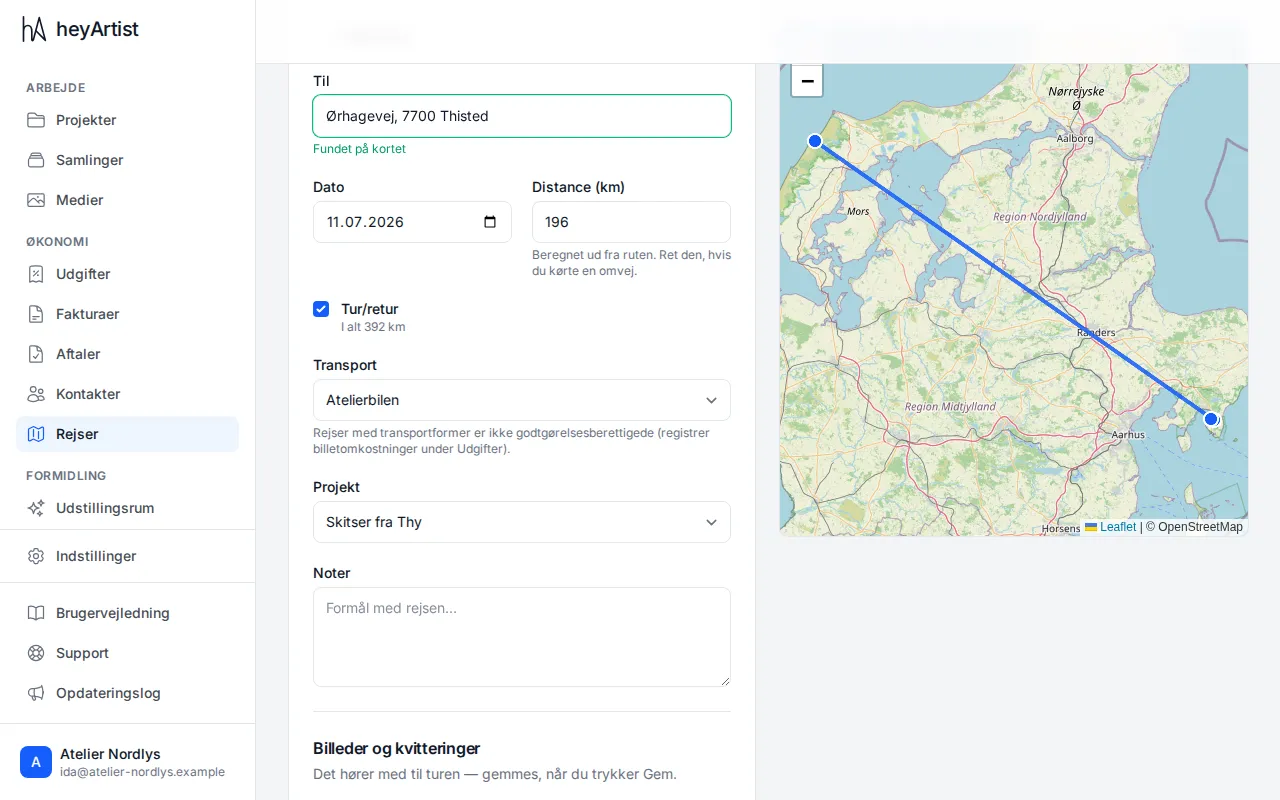
- Transport — pick one of your vehicles or a mode of transport: bicycle, train, bus, ferry, plane or on foot. Your default vehicle is already chosen.
- Project — the project the trip belongs to. The trip appears in the project’s journal.
- Notes — the purpose of the trip, for example.
Only trips in your own vehicles give mileage reimbursement. If you go by train, bus or plane, the trip gets a CO₂ figure but no reimbursement. Register the ticket as an expense instead — see Uploading receipts.
Photos and receipts
Section titled “Photos and receipts”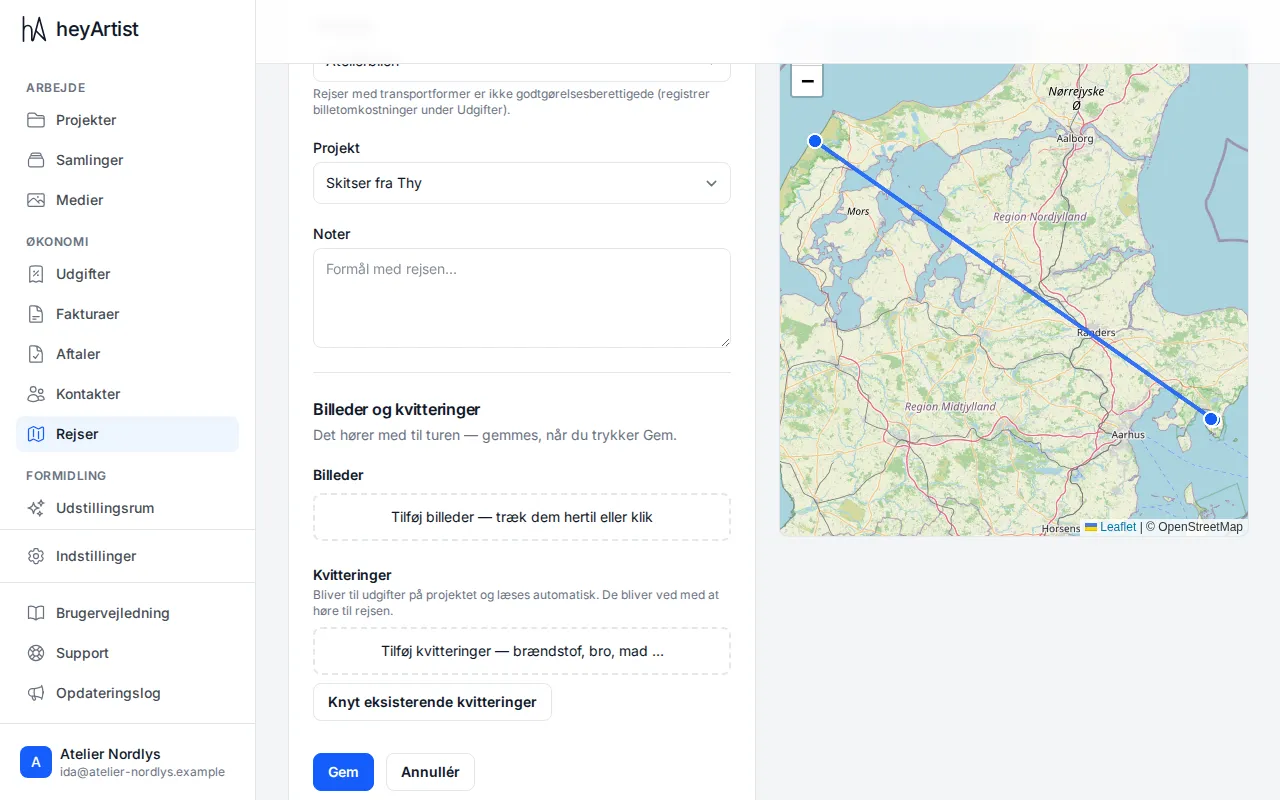
At the bottom you can add photos and receipts to the trip. Drop the files on the field, or click it.
- Photos belong to the trip, such as pictures from the sketching trip.
- Receipts — fuel, bridge, ferry, food — become expenses on the project and are read automatically, just as when you upload receipts. They stay linked to the trip.
- Link existing receipts — if you have already uploaded the receipt under Expenses, search for it by vendor, amount or date and link it to the trip.
A receipt you have seen before is caught as a duplicate, just as under Expenses. See When a receipt is refused.
Click Save trip. Photos and receipts are saved with the trip. If they have not finished uploading, the button waits until they are up.
Change a trip
Section titled “Change a trip”Click Edit next to the trip in the list. If you change the distance, the return trip or the transport, the reimbursement and CO₂ are worked out again when you save.