

Issuing and sending an invoice
When the draft is ready, you issue the invoice. Only then does it get its number — and only then can it be sent.
The screenshots show heyArtist in Danish; the labels are named in English here as they appear when you switch the app to English.
Issue the invoice
Section titled “Issue the invoice”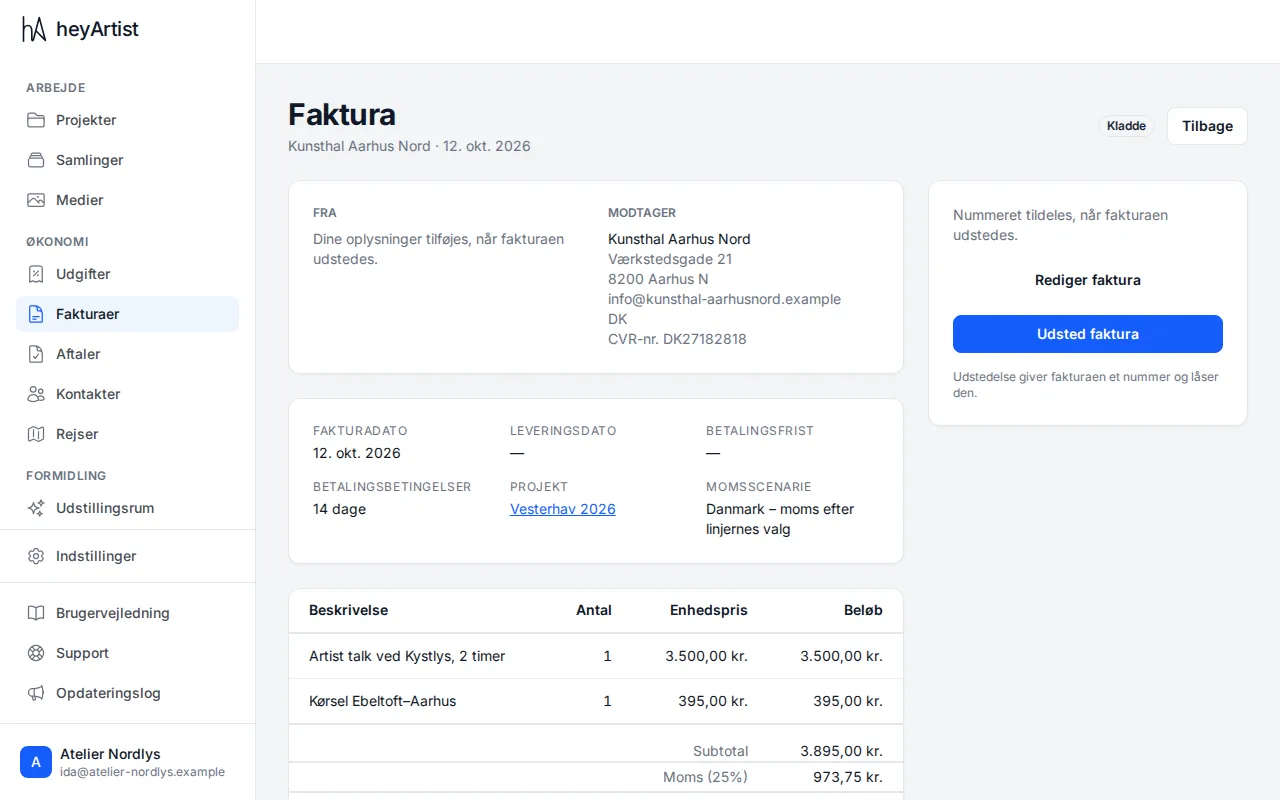
- Open the draft from the list under Invoices.
- Check the recipient, dates, lines and VAT. If something needs changing, click Edit invoice.
- Click Issue invoice.
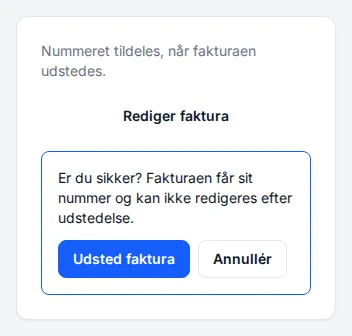
When the invoice is issued:
- it gets its number, such as INV-2026-001,
- your seller details are copied onto it,
- the due date is worked out from the invoice date and your payment terms,
- the VAT is recalculated against your VAT registration on the invoice date,
- its status becomes Issued (Sendt in Danish) — even if you have not emailed it yet.
heyArtist does not issue the invoice if:
- your invoice details are not filled in — a list of what is missing is shown instead of the button. See Before you invoice,
- the invoice has no lines,
- the scenario is EU Business – Reverse Charge and the recipient has no VAT number,
- the draft carries VAT but the account was not VAT registered on the invoice date. See VAT on the invoice.
The PDF
Section titled “The PDF”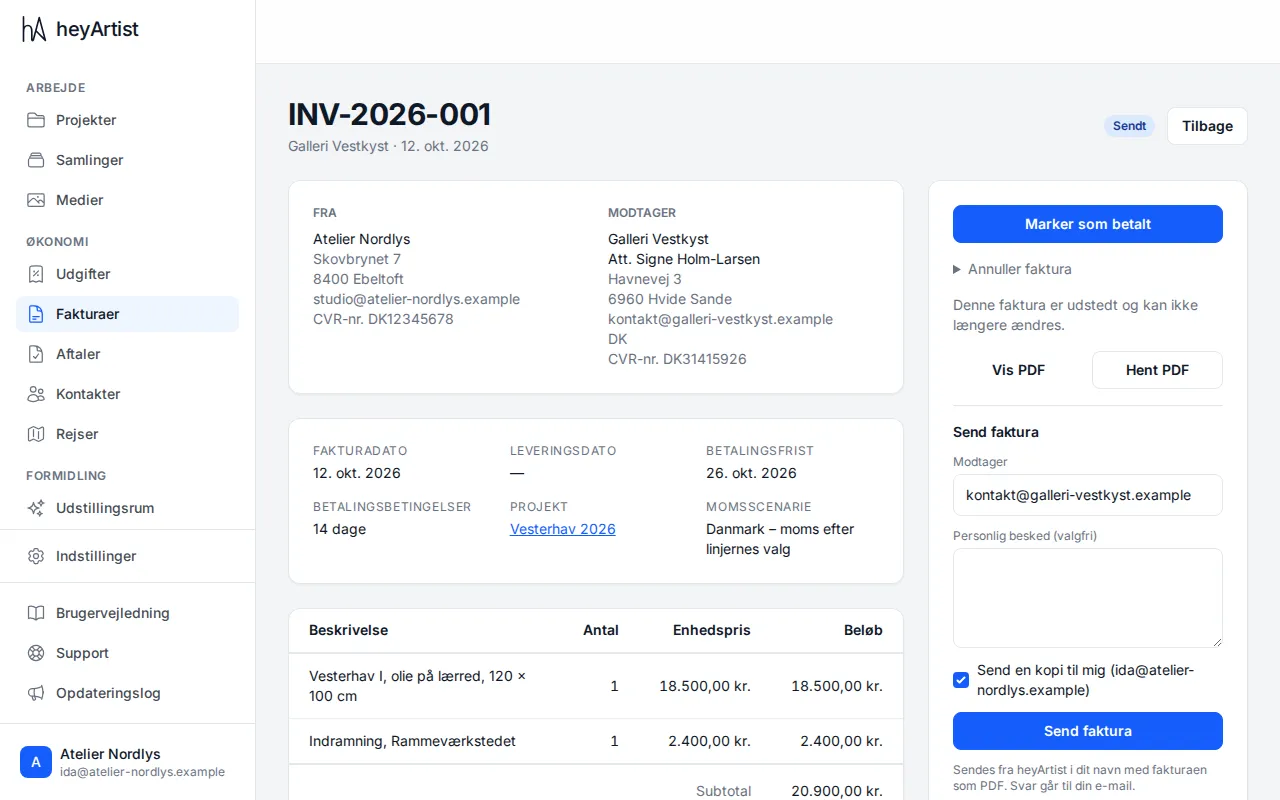
An issued invoice has two buttons:
- View PDF — opens the invoice as a PDF in a new tab.
- Download PDF — downloads the PDF to your computer, so you can send or print it yourself.
The PDF is in the invoice’s language (Danish or English), in your colour, with your payment instructions and your footer.
Email the invoice
Section titled “Email the invoice”Under Send invoice you send the PDF straight to the customer:
- Recipient is filled in with the recipient’s email. You can enter another address, such as the customer’s bookkeeper. One address at a time.
- If you like, write a Personal message (optional) — it is included in the email.
- Leave Send me a copy ticked if you want a copy.
- Click Send invoice.
The email is sent from heyArtist in your name, with the invoice attached as a PDF. The email itself also shows the amount, the due date and your payment instructions. If the customer replies, the reply goes to your email.
If it says the PDF is being made, wait a moment and try again.
Only issued and paid invoices can be sent. A draft has no Send invoice.
What has been sent?
Section titled “What has been sent?”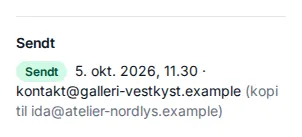
Under Sent each time the invoice was sent is listed: time, recipient and any copy, with a status:
- On its way — the email is being sent.
- Sent — the email has been sent.
- Failed — the email could not be sent. The reason is shown next to it. Correct the address and send again.
You can send the same invoice more than once, as a reminder for example.