

Sub-projects and the hierarchy
A project can sit under another. A large exhibition might have one sub-project for the preparatory work, one for the catalogue and one for the hanging. The hierarchy is there to keep things tidy — a sub-project has its own journal, artworks and expenses.
The hierarchy
Section titled “The hierarchy”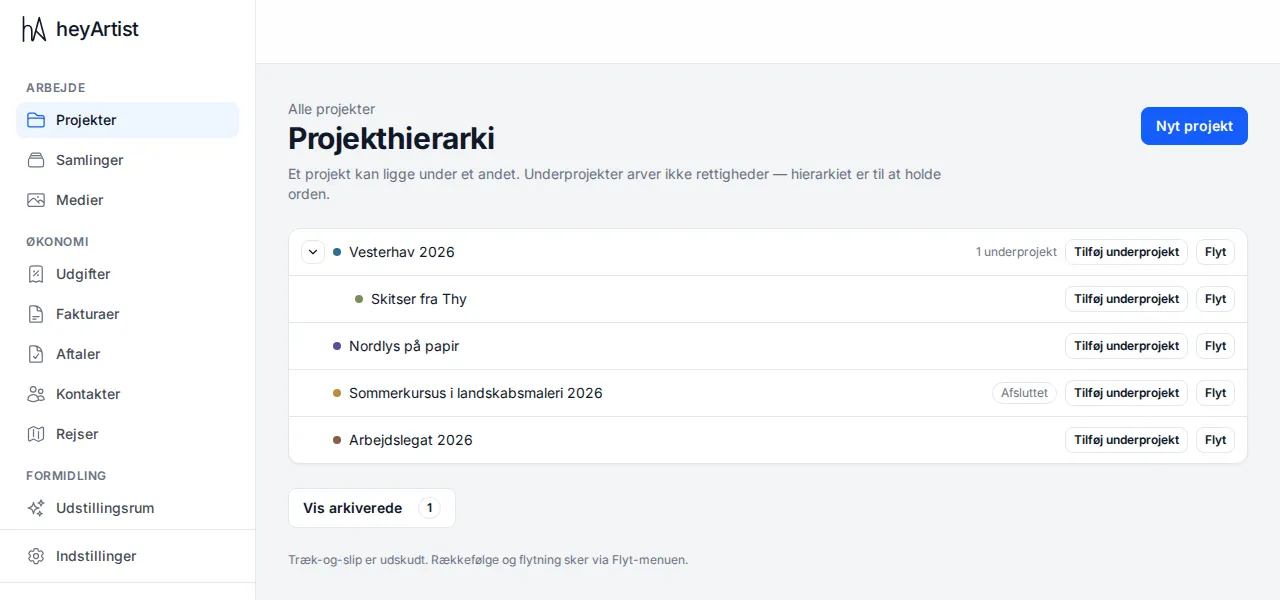
Click Projects in the menu, then Hierarchy. Here you see all projects as a tree. Sub-projects are indented under their parent, and the parent shows how many sub-projects it has.
- Click the arrow next to a project to collapse or expand its sub-projects.
- Completed projects carry the Completed label.
- Archived projects are hidden. Click Show archived to see them — the number on the button is how many there are.
The list under Projects shows only the top-level projects. You find the sub-projects here.
Create a sub-project
Section titled “Create a sub-project”- Click Add sub-project next to the project it should sit under.
- Write a title.
- Click Save. The sub-project now sits under its parent.
Set the description, colour and deadline afterwards by opening the sub-project and clicking Edit.
Move a project
Section titled “Move a project”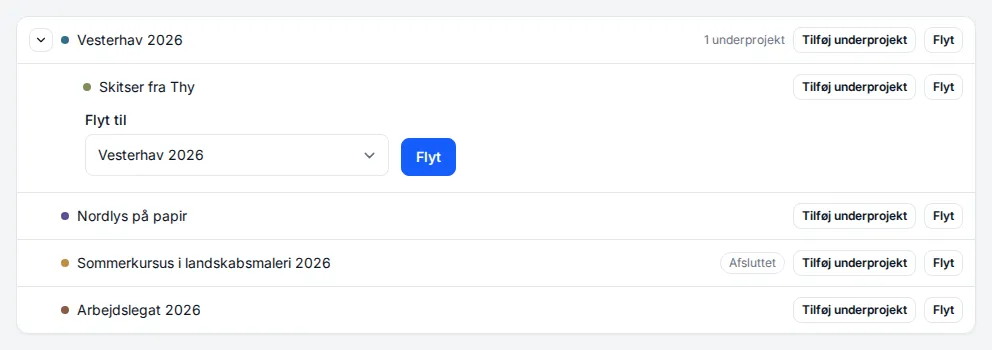
- Click Move next to the project you want to move.
- Choose the new parent under Move to. Choose None — top level to make it a project of its own again.
- Click Move.
Its sub-projects move with it. A project cannot be moved under itself or under one of its own sub-projects.
You cannot drag projects around with the mouse — moving is done with Move.