

Groups and sources
Groups give you an overview, even with several hundred contacts: VIP, Galleries, Collectors, Course participants and Foundations, for example. Each group has a colour and, if you like, an icon, which you see in the list. A contact can be in several groups.
Sources record where you know a contact from: Fair, Exhibition venue, Referral and so on.
You set up both under Settings → Contacts.
The screenshots show heyArtist in Danish; the labels are named in English here as they appear when you switch the app to English.
Groups
Section titled “Groups”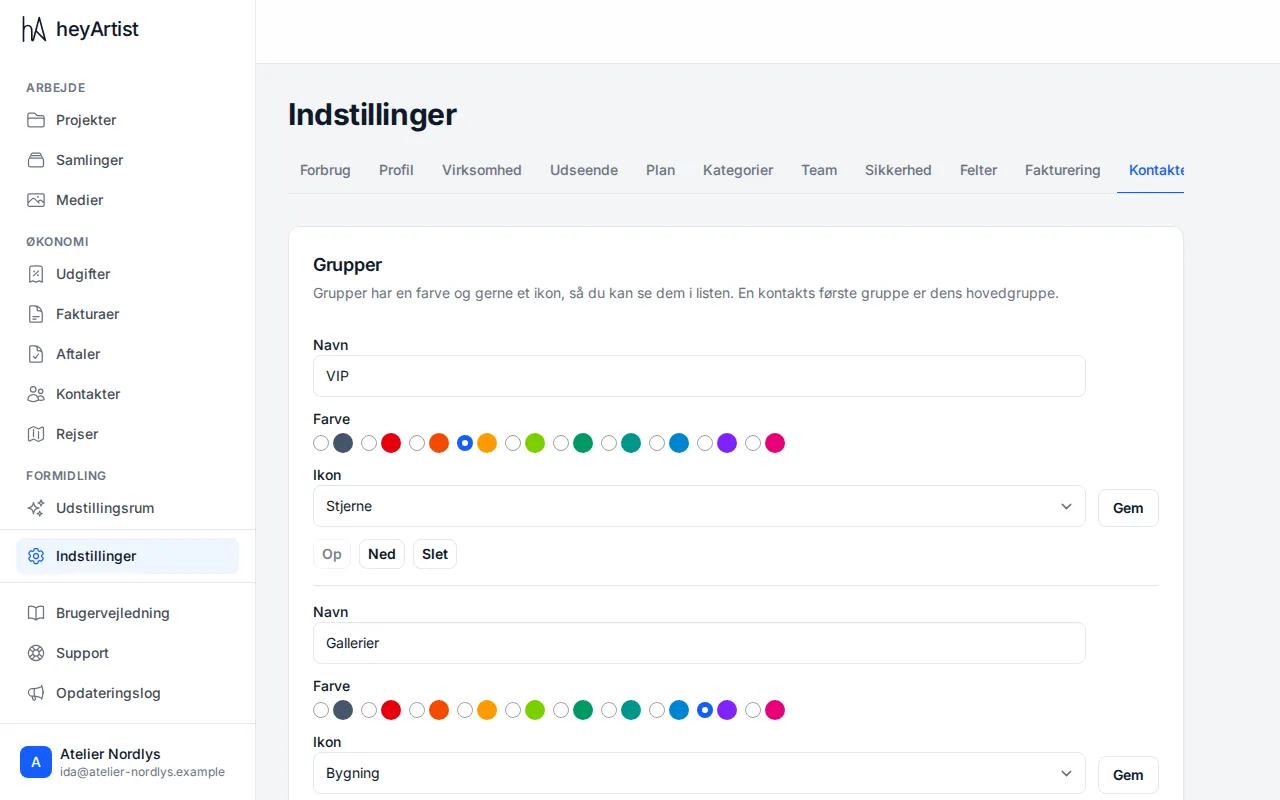
Each group has:
- a Name,
- a Colour — there are 10 to choose from, readable in both the light and the dark theme,
- an Icon — star, heart, brush, building, education, camera, gift, flag, bolt or leaf. The icon can be left out.
Change a group and click Save next to it. Click Up and Down to set the order of the groups at the top of the list, and of the sections when the list is grouped by main group. Click Delete to delete a group. Its contacts stay; they are just no longer in the group.
Create a group
Section titled “Create a group”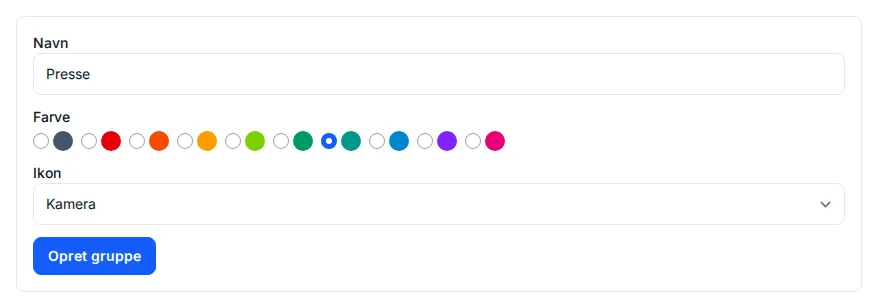
At the bottom of Groups: type the name, pick a colour and an icon, and click Create group. Two groups cannot have the same name.
The main group
Section titled “The main group”A contact’s first group is its main group. It gives the contact its colour in the list, and it is the section the contact appears under when you tick Group by main group.

On the contact’s page you click groups on and off. The chosen ones are in colour, and the main group comes first. Click ★ next to another chosen group to make it the main group. When you have changed something, click Save groups.
Sources
Section titled “Sources”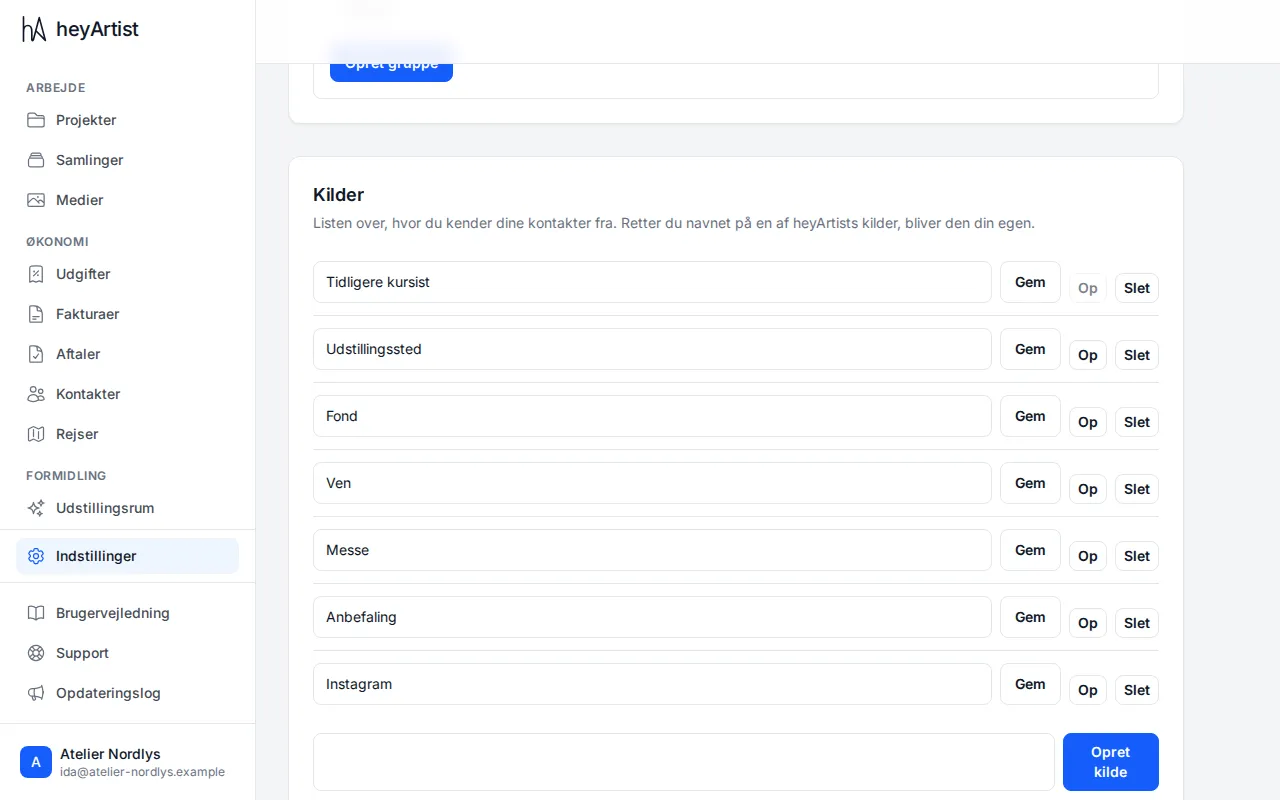
Sources lists where you know your contacts from. heyArtist starts with Former course participant, Exhibition venue, Foundation, Friend, Fair, Referral and Instagram.
- Change a name and click Save. If you rename one of heyArtist’s sources, it becomes your own.
- Click Up to move a source up the list, and Delete to delete it. Contacts that already have the source keep it.
- Type a new source at the bottom and click Create source.
On the contact you pick the source and can add a note, such as Art Herning 2025. In the contact list you can filter by source.