

Write to support
If you have a question or a problem, write to heyArtist from the app. The answer arrives in the same place, and you get an email when heyArtist has replied.
The screenshots show heyArtist in Danish; the labels are named in English here as they appear when you switch the app to English.
Open a case
Section titled “Open a case”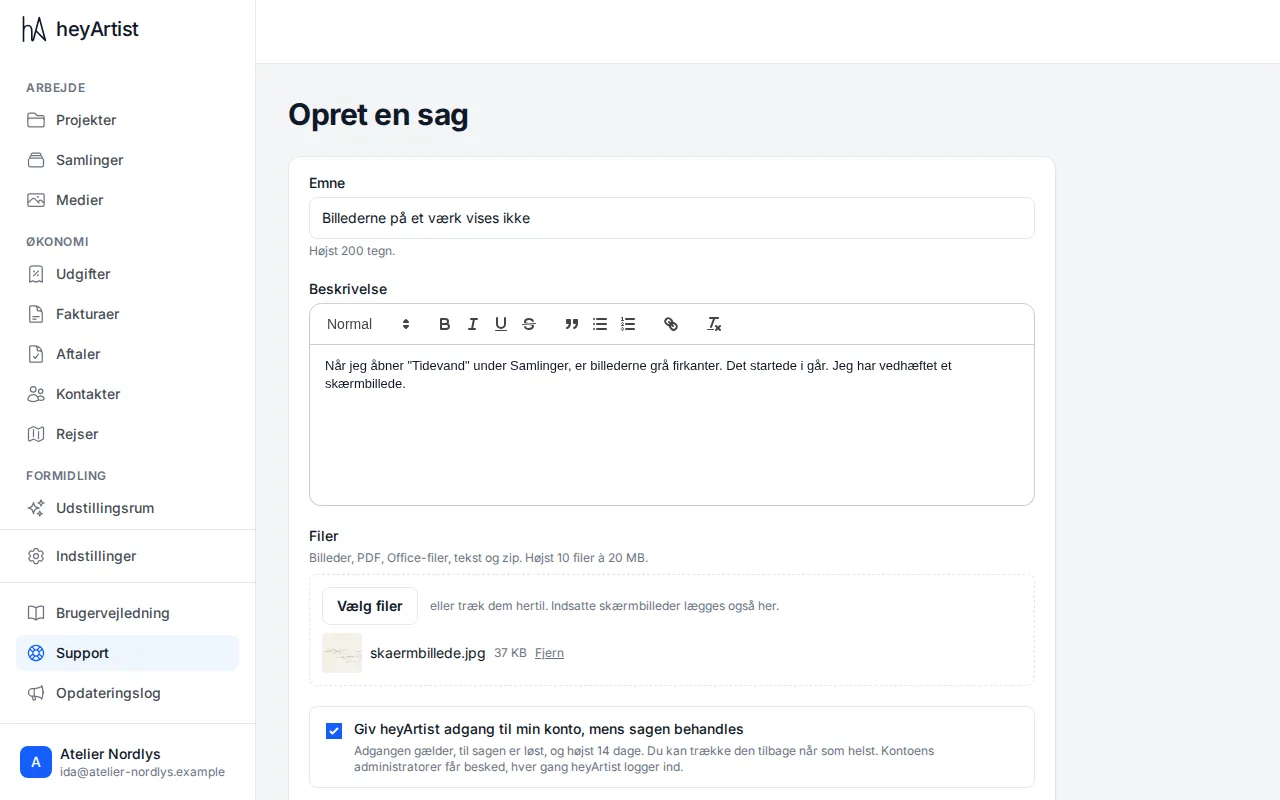
- Click Support at the bottom of the menu and then New case.
- Write a short Subject (at most 200 characters).
- In Description, describe what you were trying to do and what happened. The more precise, the faster we can help.
- Attach screenshots or files under Files if you like: click Choose files, drop them on the field, or paste a screenshot straight in. You can attach pictures, PDF, Office files, text and zip — at most 10 files of 20 MB each.
- If you like, tick Give heyArtist access to my account while the case is being handled — see below.
- Click Send case.
Access to your account
Section titled “Access to your account”
Some problems are easiest to solve if heyArtist can see the same as you. If you give access, heyArtist can sign in to the account while the case is being handled.
- Access lasts until the case is resolved, and at most 14 days.
- You can withdraw access at any time.
- The account’s managers get an email every time heyArtist signs in.
- heyArtist can only sign in to your account when you have given access on a case. Without your consent there is no access.
You can also give access later: open the case and click Give access under Access to your account. Click Withdraw access to stop it again.
Follow the case and reply
Section titled “Follow the case and reply”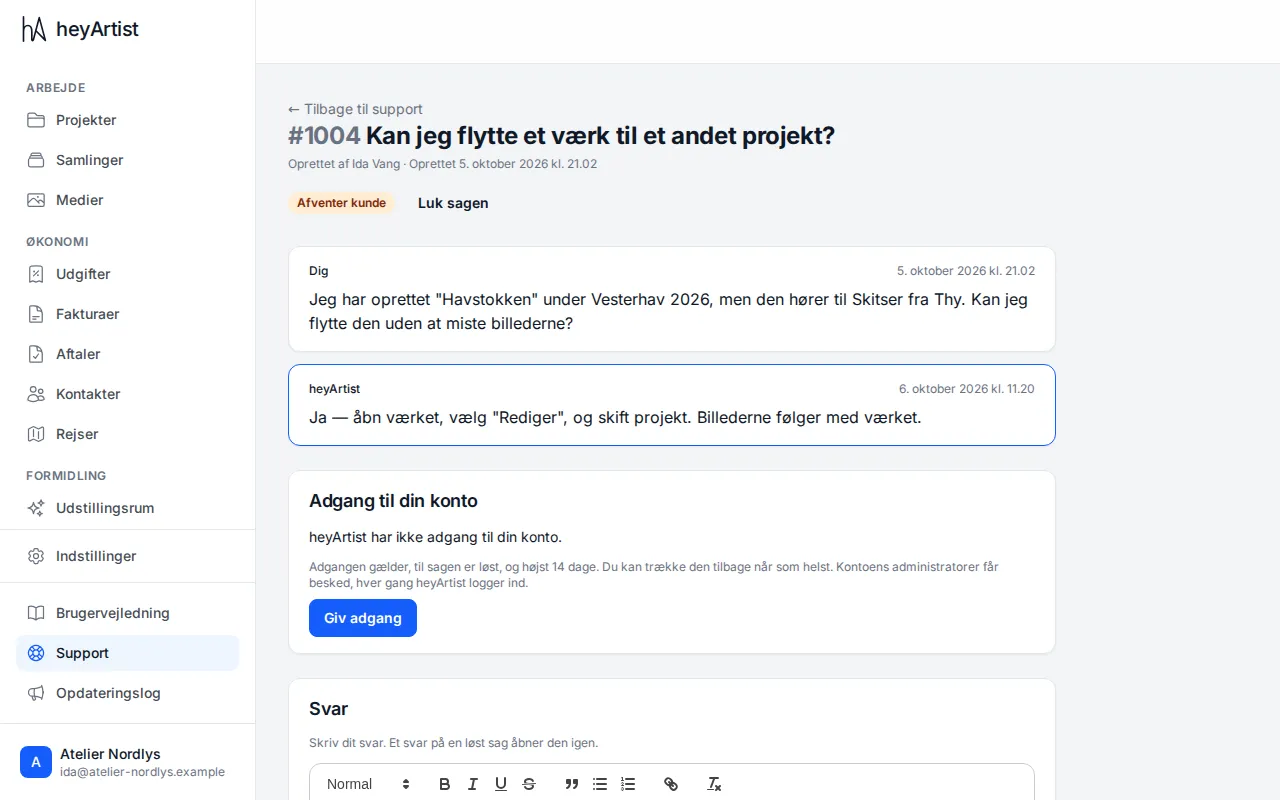
Open the case from the list under Support. At the top are the status and Close the case. Below is the conversation, with your messages and heyArtist’s replies, and under it whether heyArtist has access to your account.
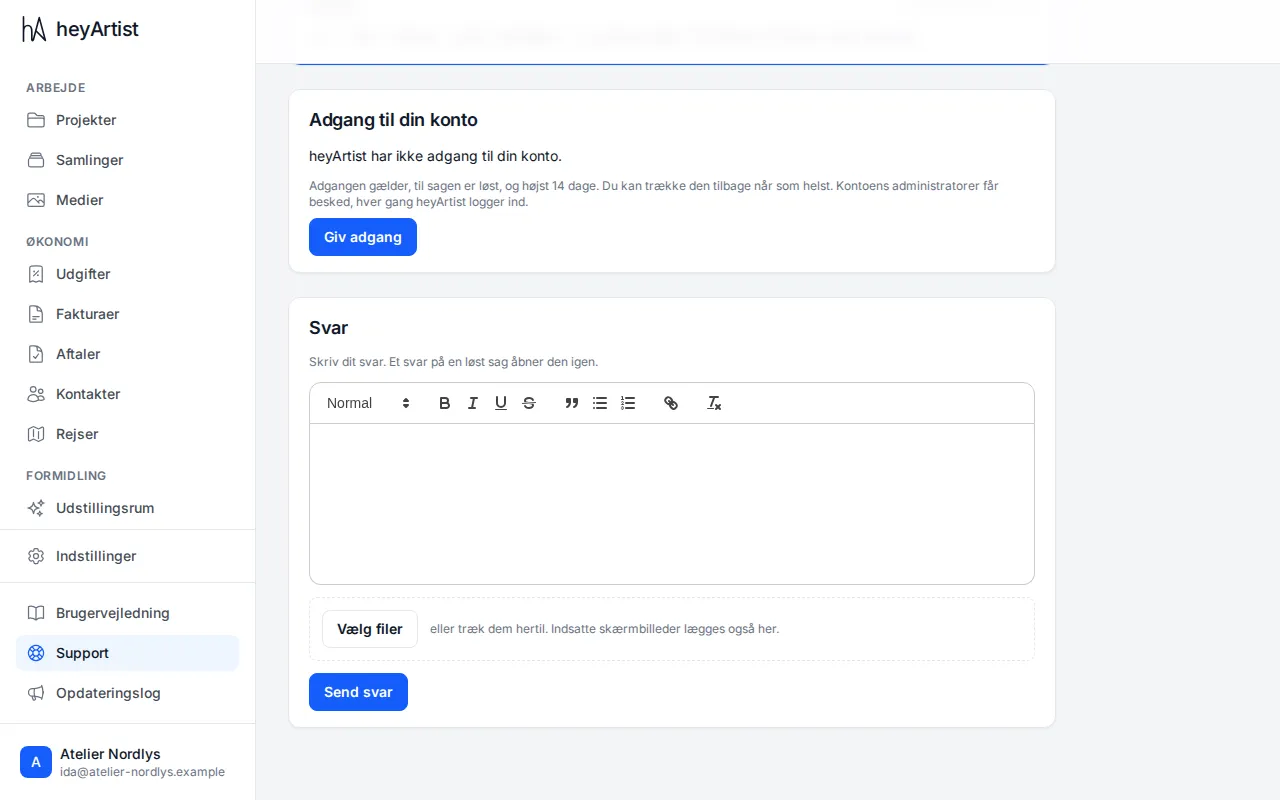
At the bottom, under Reply, you write your reply. You can attach more files the same way as when you opened the case. Click Send reply.
Close the case
Section titled “Close the case”When your problem is solved, click Close the case at the top and confirm. The case is marked Resolved, and heyArtist’s access to your account stops.
If you need more help, write a reply on the case. That reopens it. Access does not come back by itself: it ended when the case was resolved. If heyArtist should be able to see your account again, click Give access on the case.