

Create and arrange a showroom
Click Showrooms in the menu and then New showroom. The form has four sections. When you have filled it in, click Create showroom at the bottom. Later you open the showroom with Edit and save changes with Save.
The screenshots show heyArtist in Danish; the labels are named in English here as they appear when you switch the app to English.
Basics
Section titled “Basics”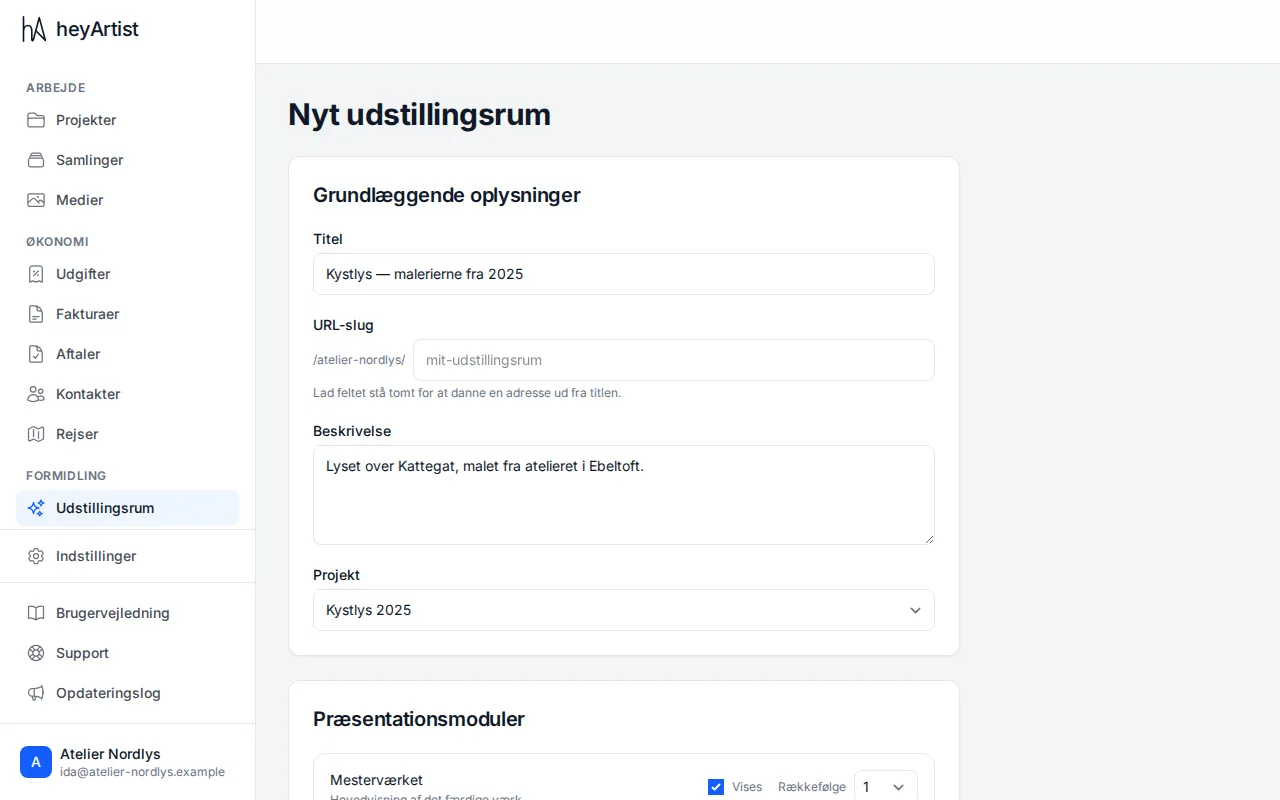
- Title — such as Kystlys — the paintings from 2025.
- URL slug — the last part of the showroom’s address, after the account’s name. Leave it empty and heyArtist makes it from the title. It may only contain lower-case letters, digits and hyphens.
- Description — a couple of lines shown under the title.
- Project — the project the showroom presents. Only top-level projects can be chosen, not sub-projects.
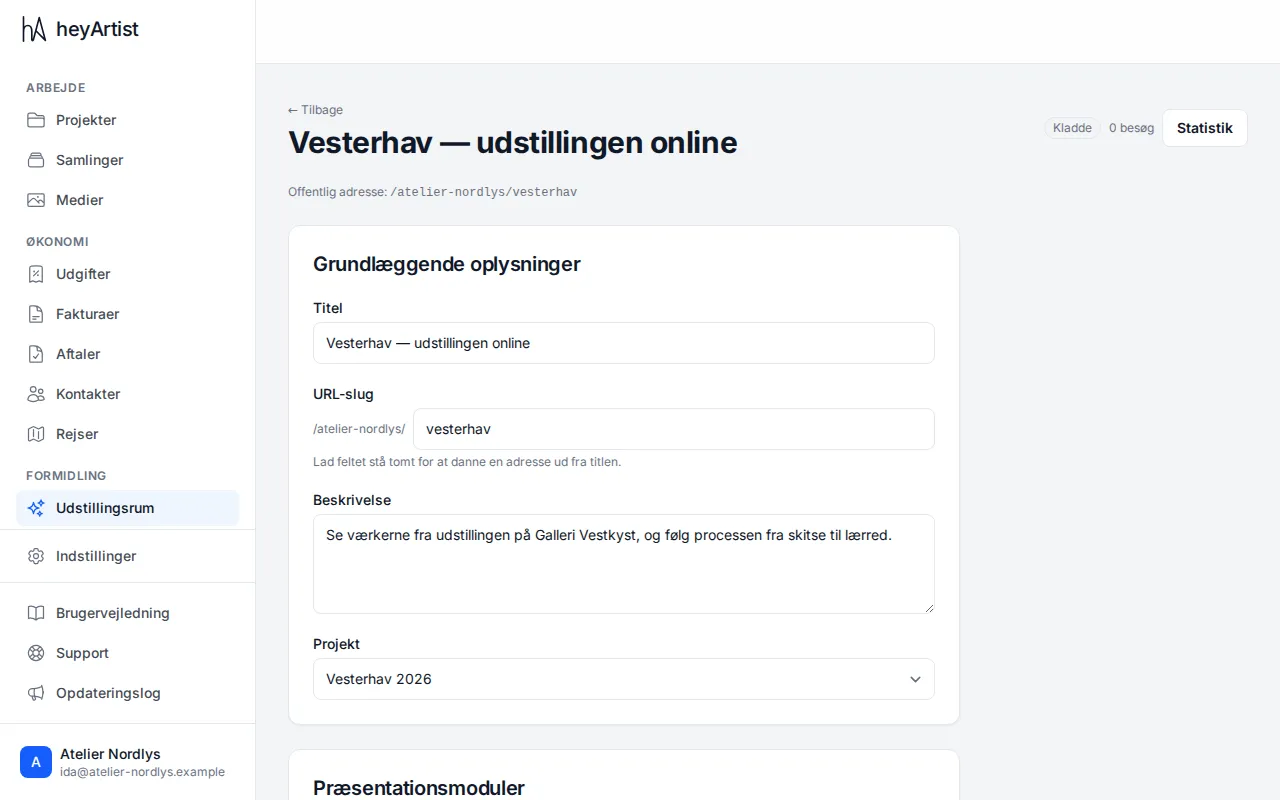
Once the showroom is created, its public address is shown at the top of the page, such as /atelier-nordlys/vesterhav.
Presentation modules
Section titled “Presentation modules”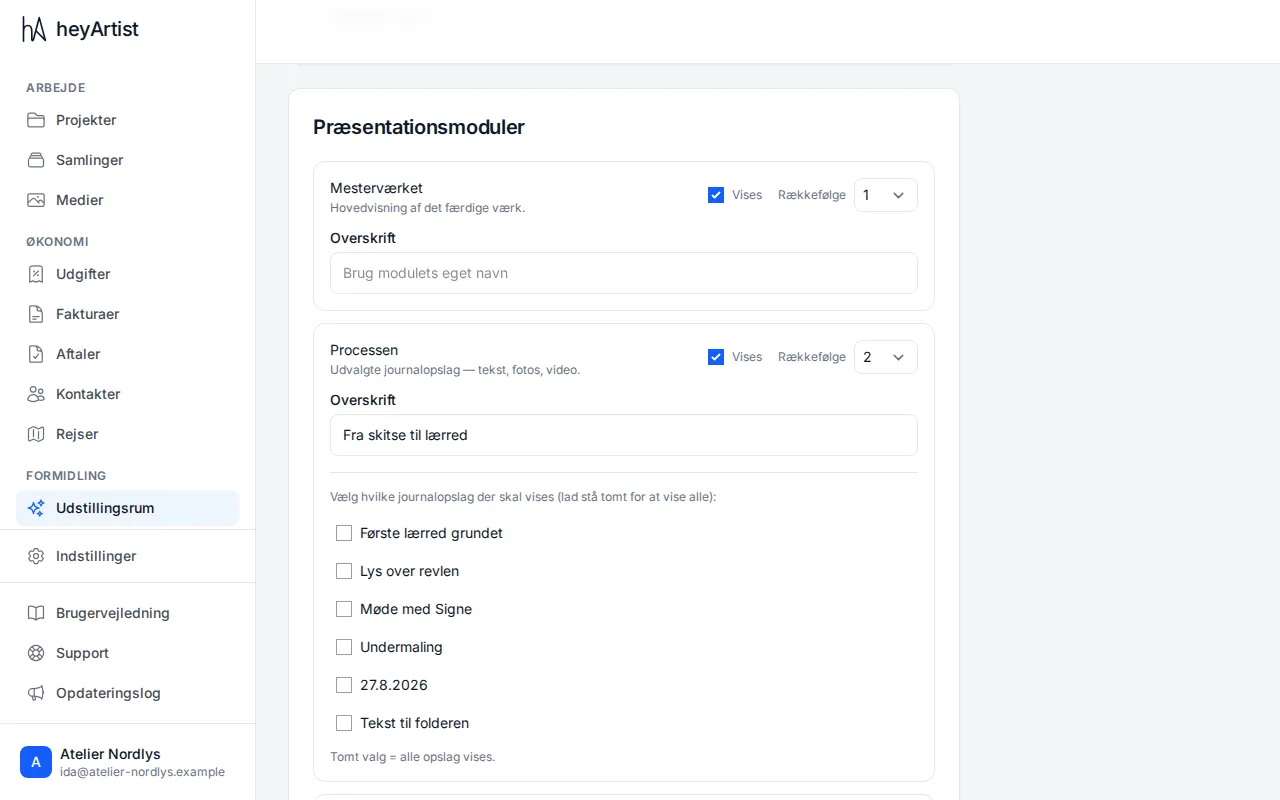
The showroom has three modules: The masterpiece, The process and The impact. For each module you decide:
- Shown — whether the module is included.
- Order — which module comes first.
- Heading — leave it empty to use the module’s own name, or write your own, such as From sketch to canvas.
Under The process you choose which journal entries to include. If you choose none, all the project’s entries are included. The list only shows the entries once the showroom has a project and has been saved.
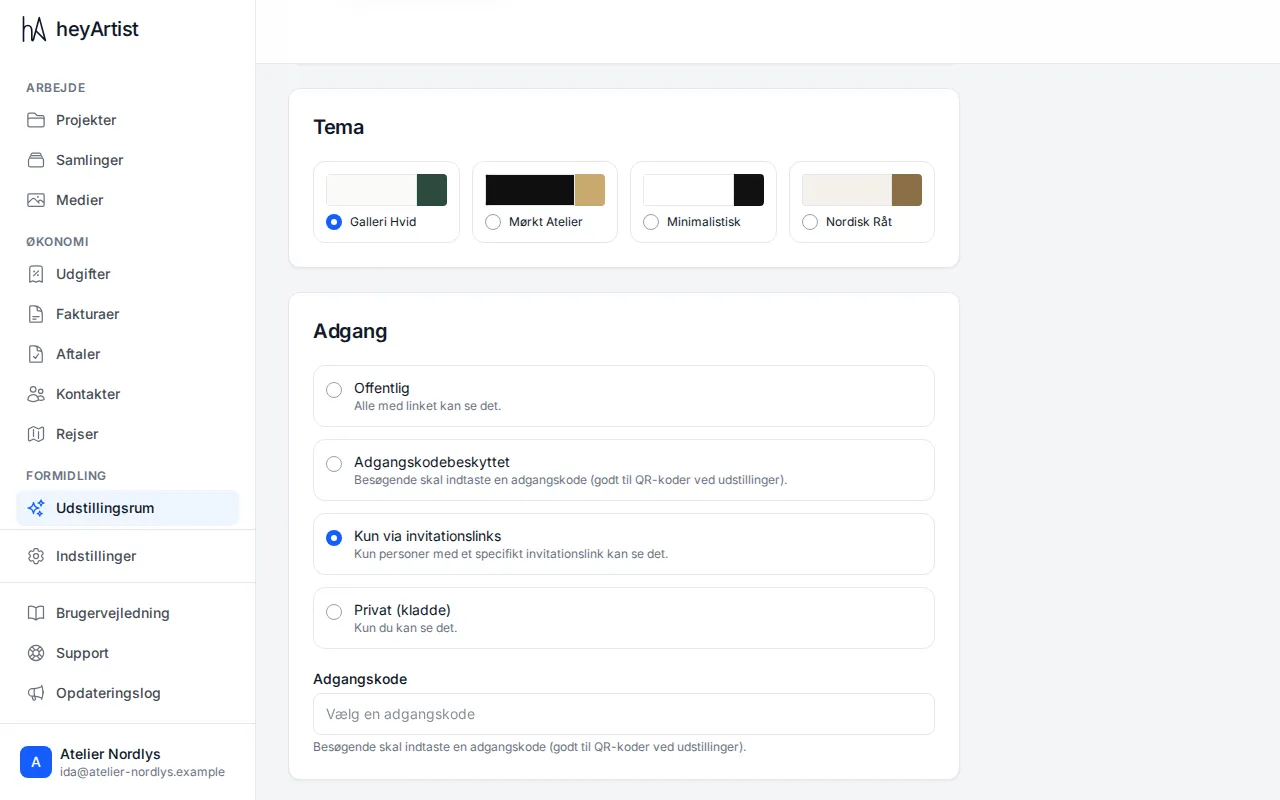
Choose one of the four themes: Galleri Hvid, Mørkt Atelier, Minimalistisk or Nordisk Råt. The small swatches show the theme’s colours.
Access
Section titled “Access”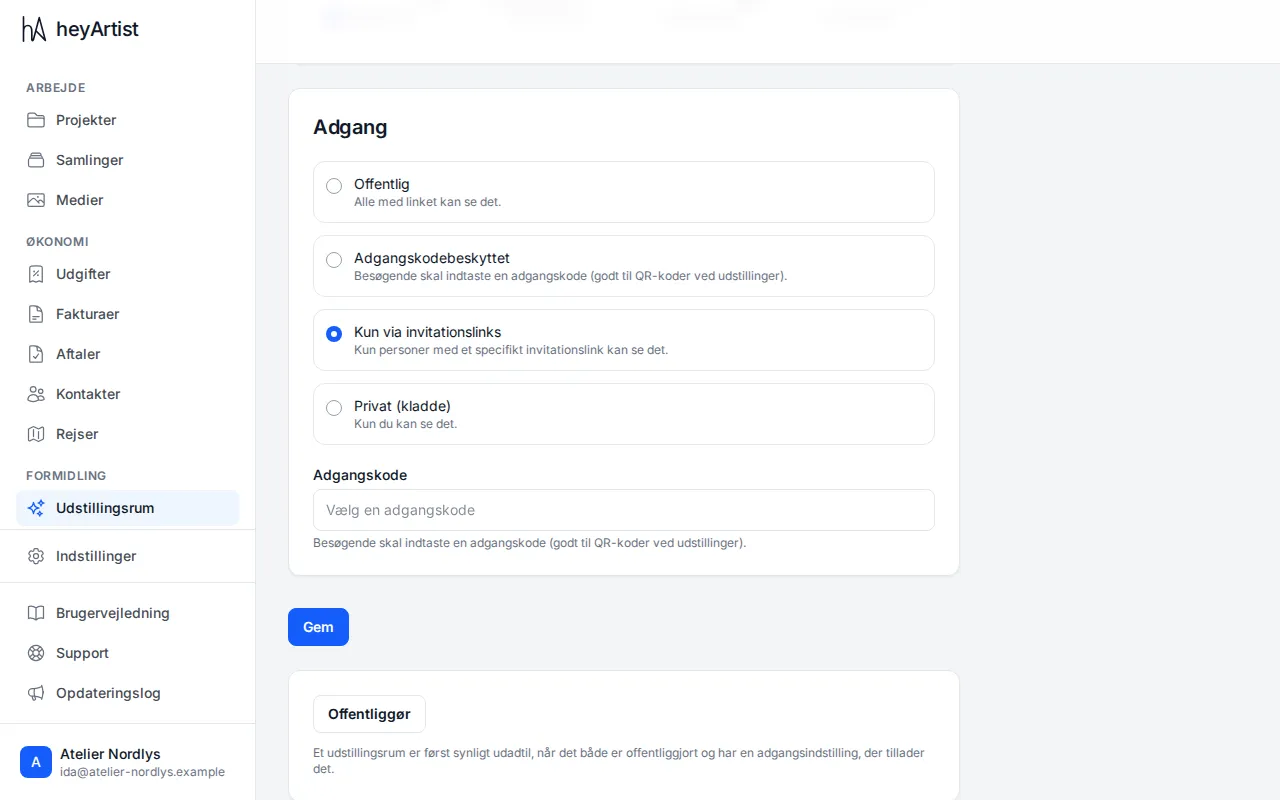
Choose who should be able to see the showroom:
| Access | Who can see it |
|---|---|
| Public | Anyone with the link. |
| Password protected | Visitors must enter a password. Good for a QR code at an exhibition. The password must be 4–100 characters. When you edit the showroom later, leave the field empty to keep the current one. |
| Invitation links only | Only people with a personal link. See Invitation links. |
| Private (draft) | Only you and the others on the account. |
Publish
Section titled “Publish”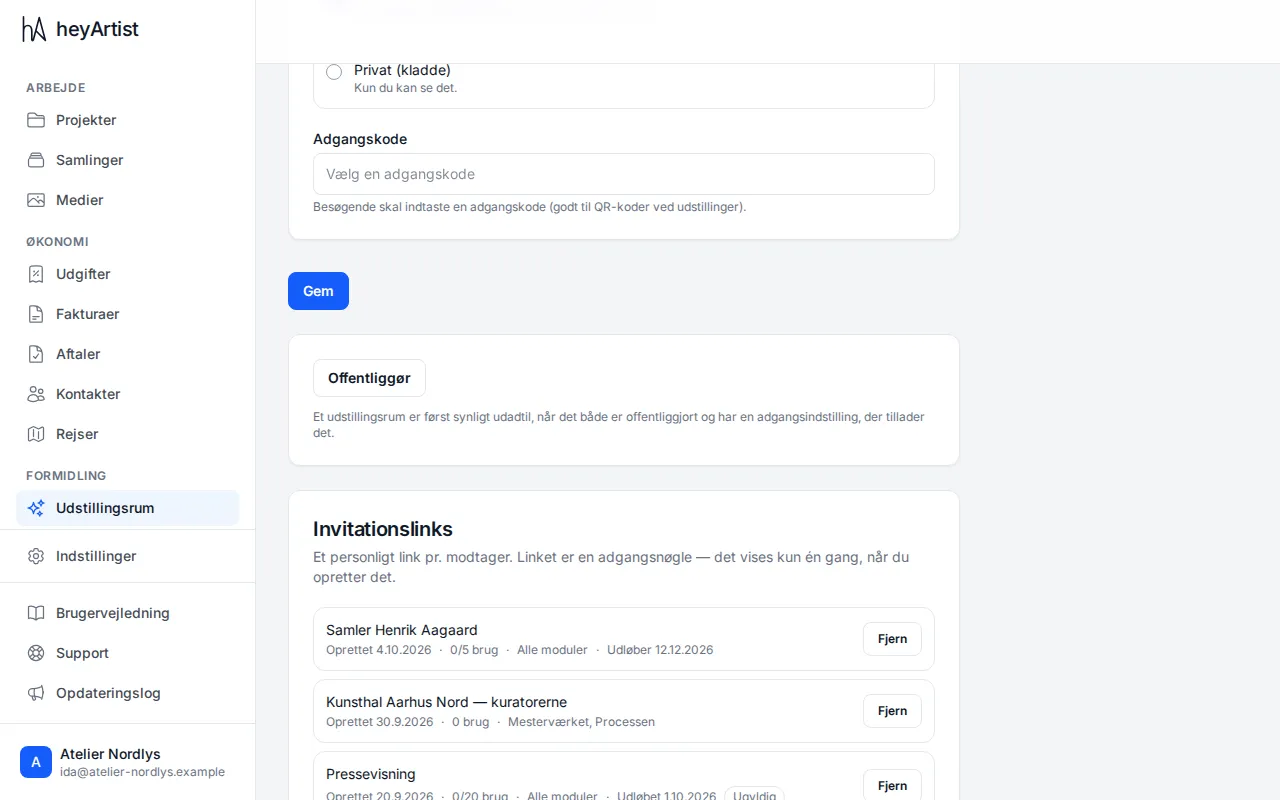
A new showroom is a Draft. Click Publish to mark it as ready, and Make private to take it back again. The showroom only becomes visible from outside once it is both published and has an access mode that allows it — and once the public page exists.
Delete a showroom
Section titled “Delete a showroom”At the bottom of the page, click Delete showroom, and then Delete showroom again to confirm. The showroom is hidden and made private, and its invitation links stop working. It cannot be undone.