

A file's details
Click the file name in the media library to open the file’s own page.
The screenshots show heyArtist in Danish; the labels are named in English here as they appear when you switch the app to English.
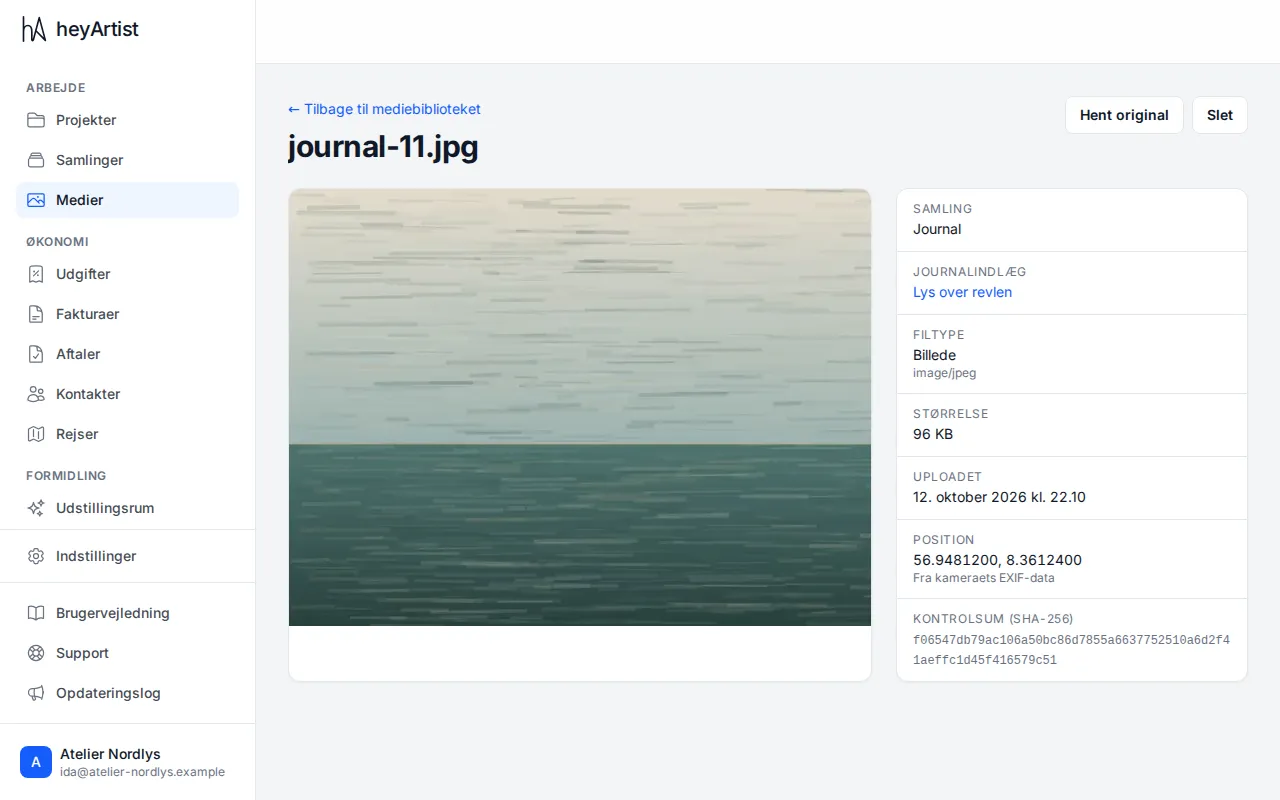
On the left is the picture (or the video or PDF). If the browser cannot show the file type, download the original to open it. On the right are:
- Collection — what kind of file it is, such as Journal or Images.
- What the file belongs to — such as Journal entry or Artwork, with a link to it.
- File type — such as Image, with the technical format below.
- Size.
- Captured and Uploaded — when the picture was taken (if the camera recorded it), and when it was uploaded.
- Location — the GPS position. Below it is where it came from: From the camera’s EXIF data or Set by hand. If the picture has none, it says so.
- Description, if the file has one.
- Checksum (SHA-256) — the file’s fingerprint. Two files with the same checksum are exactly the same file. heyArtist uses it to spot duplicates.
Duplicates
Section titled “Duplicates”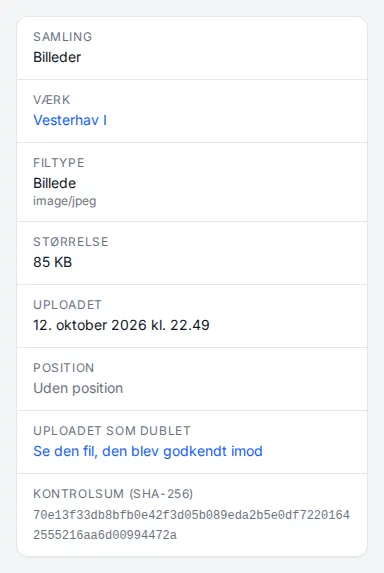
If you upload a file that already exists in the account, heyArtist asks first. If you choose to upload it again, the file’s page says Uploaded as a duplicate. Click View the file it was accepted against to go to the first one.
See Pictures and files on an artwork and The journal.
Download the original
Section titled “Download the original”Click Download original to download the file exactly as it was uploaded — at full size and in its original format, such as HEIC from an iPhone.
Delete the file
Section titled “Delete the file”Delete deletes the file permanently once you confirm. It cannot be restored.