

Importing from Excel or CSV
If you keep your contacts in a spreadsheet, you can bring them into heyArtist in one go. The import happens on one page in four steps: file, columns, review and result. Nothing is saved until you click Import at the end.
The screenshots show heyArtist in Danish; the labels are named in English here as they appear when you switch the app to English.
Before you start
Section titled “Before you start”- The file must be an Excel sheet (.xlsx) or a CSV file.
- The first row must be headings, such as Name, Email, Mobile, Company.
- At most 5,000 rows, 200 columns and 2 MB. If the file is larger, split it into several.
If your contacts are in another program, you can usually export them as CSV from there.
1. Choose the file
Section titled “1. Choose the file”- Click Contacts in the menu and then Import.
- Choose the file.
- Click Read the file.
2. What is in the columns?
Section titled “2. What is in the columns?”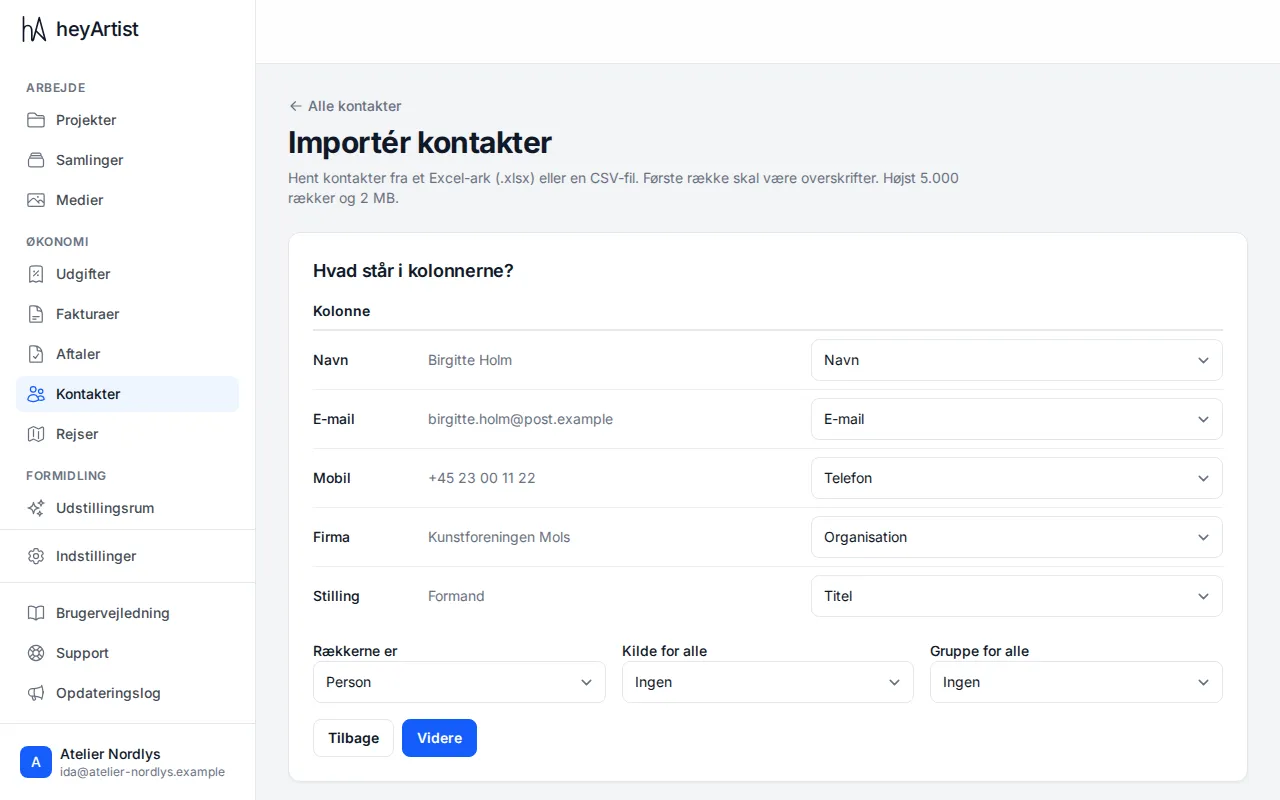
heyArtist shows each column with the value from the first row as an example, and guesses what it holds from the heading — in Danish or English. Mobile becomes Phone, Company becomes Organisation, and Position becomes Job title.
- Correct a guess in the list next to the column if it is wrong.
- Choose Skip for a column you do not want.
- Under The rows are, choose whether the rows are people or organisations.
- If you like, pick a Source for all and a Group for all, such as the source Fair and the group Collectors.
The columns can include name (or first and last name), email, two phone numbers, organisation, job title, address, postcode, city, country, website, Instagram, CVR or VAT number and notes. If a person has an organisation next to them, they are linked to it.
Click Next.
3. Review the rows
Section titled “3. Review the rows”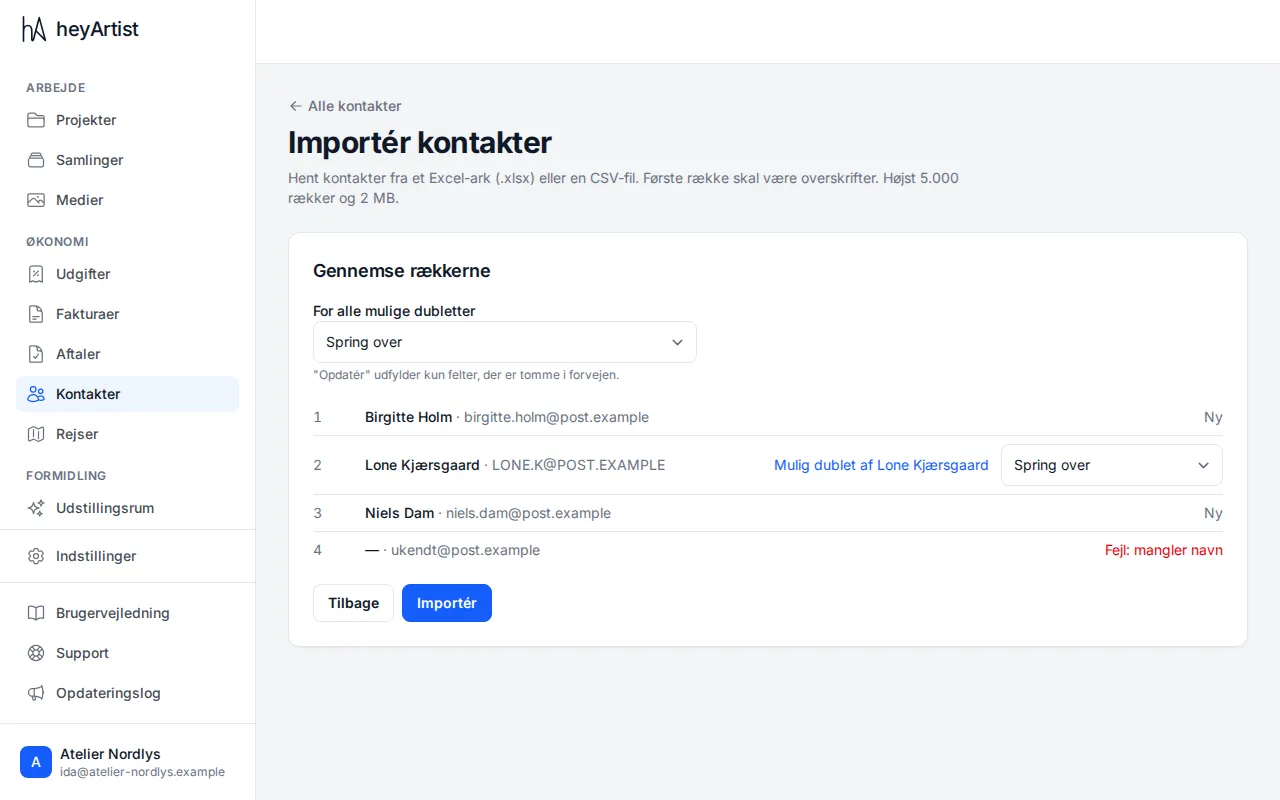
Each row is marked:
- New — will be created.
- Possible duplicate of … — a contact with the same email or phone number already exists, or the row looks like another row in the file. Upper and lower case do not count: LONE.K@POST.EXAMPLE is the same as lone.k@post.example.
- Error — the row cannot be imported, because it has no name or the email address looks wrong, for example.
For each possible duplicate you choose:
- Skip — the row is not imported.
- Create anyway — a new contact is created.
- Update the existing one — the existing contact gets the details from the row that it is missing. Fields that are already filled in are not changed.
Under For all possible duplicates you choose the same for all of them at once.
Click Import.
4. The result
Section titled “4. The result”At the end you see how many contacts were created, updated and skipped, and how many rows had errors. Click See the contacts to go to the list.
The import saves everything or nothing: if something goes wrong along the way, nothing is saved, and you can try again.