

Reviewing and approving an expense
heyArtist reads the receipt for you, but you are the one who answers for your books. So every receipt that has been read waits as Needs review until you have looked at it.
The screenshots show heyArtist in Danish; the labels are named in English here as they appear when you switch the app to English.
Open the expense
Section titled “Open the expense”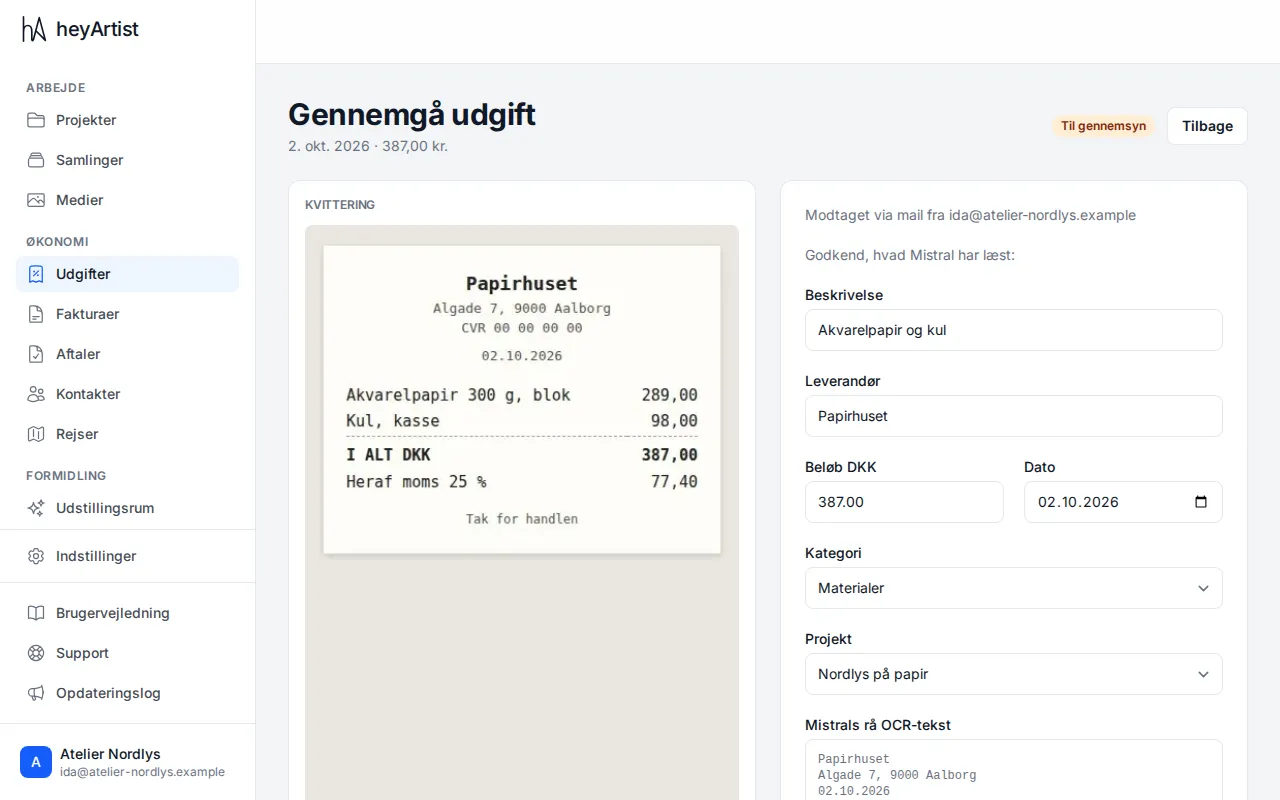
Click the expense in the list under Expenses. The Review expense page shows:
- On the left the receipt, as it was uploaded or emailed. Open original shows the file at full size — handy when an amount is hard to read.
- If the receipt came by email, Received by email from and the sender’s address is shown. If the sender is not a member of the account, there is a warning. See Receipts by email.
- If the expense belongs to a trip, From the trip is shown at the top with a link to the trip.
- On the right the fields heyArtist has filled in.
Check, correct and approve
Section titled “Check, correct and approve”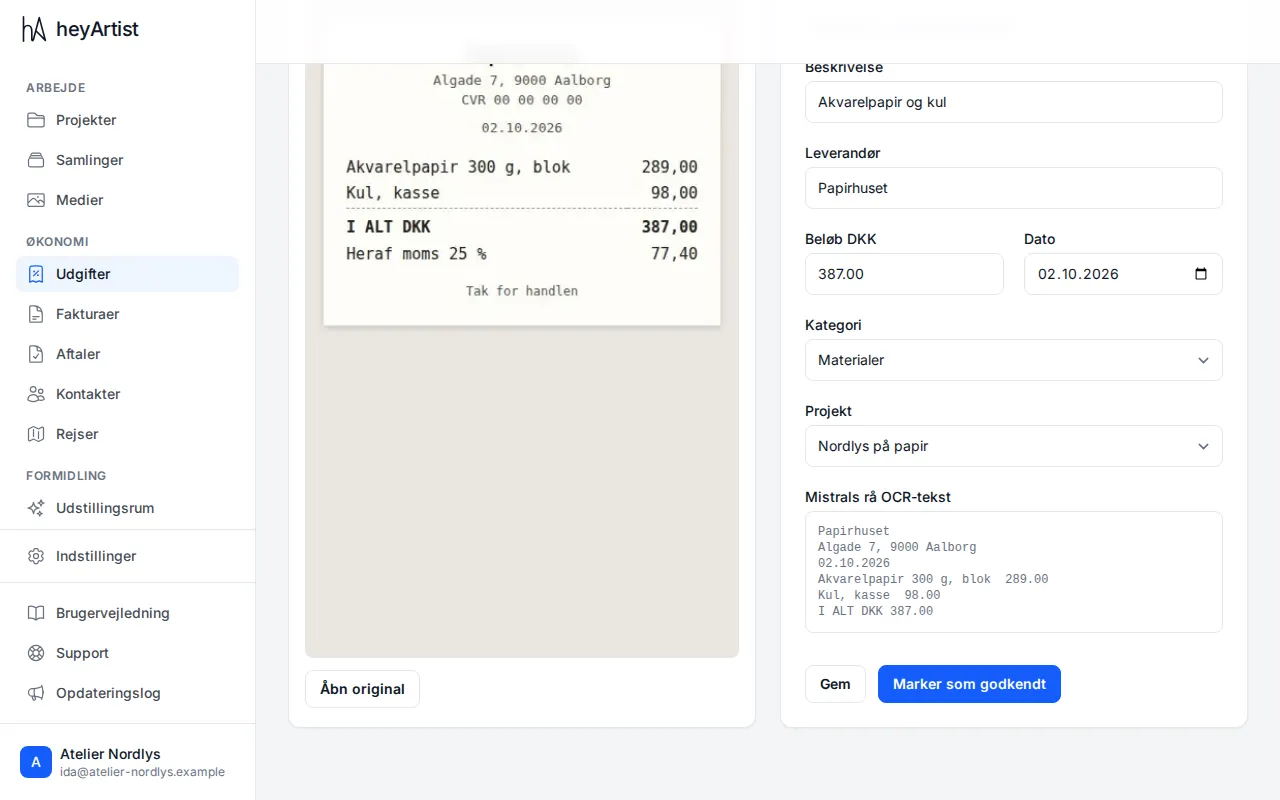
- Check Description, Vendor, Amount and Date against the receipt. Correct anything that was misread.
- Choose a Category (or leave it as Uncategorised) and, if you like, a Project.
- Click Mark verified. The expense is saved, and its status changes to Verified.
To save your corrections without approving yet, click Save. The expense then stays Needs review.
Below the fields is Mistral raw OCR text — everything that was read on the receipt, line by line. It is worth a look if a field is empty or you want to see where a number came from.
The amount must be greater than 0 before the expense can be approved. You can still correct an approved expense and press Save.
When the receipt could not be read
Section titled “When the receipt could not be read”If the receipt is blurred, crooked or in a format that cannot be read, it says This receipt could not be read. You then have two options:
- Fill in the fields yourself from the receipt, and click Mark verified.
- Click Re-run OCR to have the receipt read once more. The button is only there when the reading failed.
While the receipt is being read, the page says Reading the receipt, and the fields fill in when it is done.