

Making an invoice
A new invoice starts as a draft. It can be changed as much as you like until you issue it.
The screenshots show heyArtist in Danish; the labels are named in English here as they appear when you switch the app to English.
The recipient
Section titled “The recipient”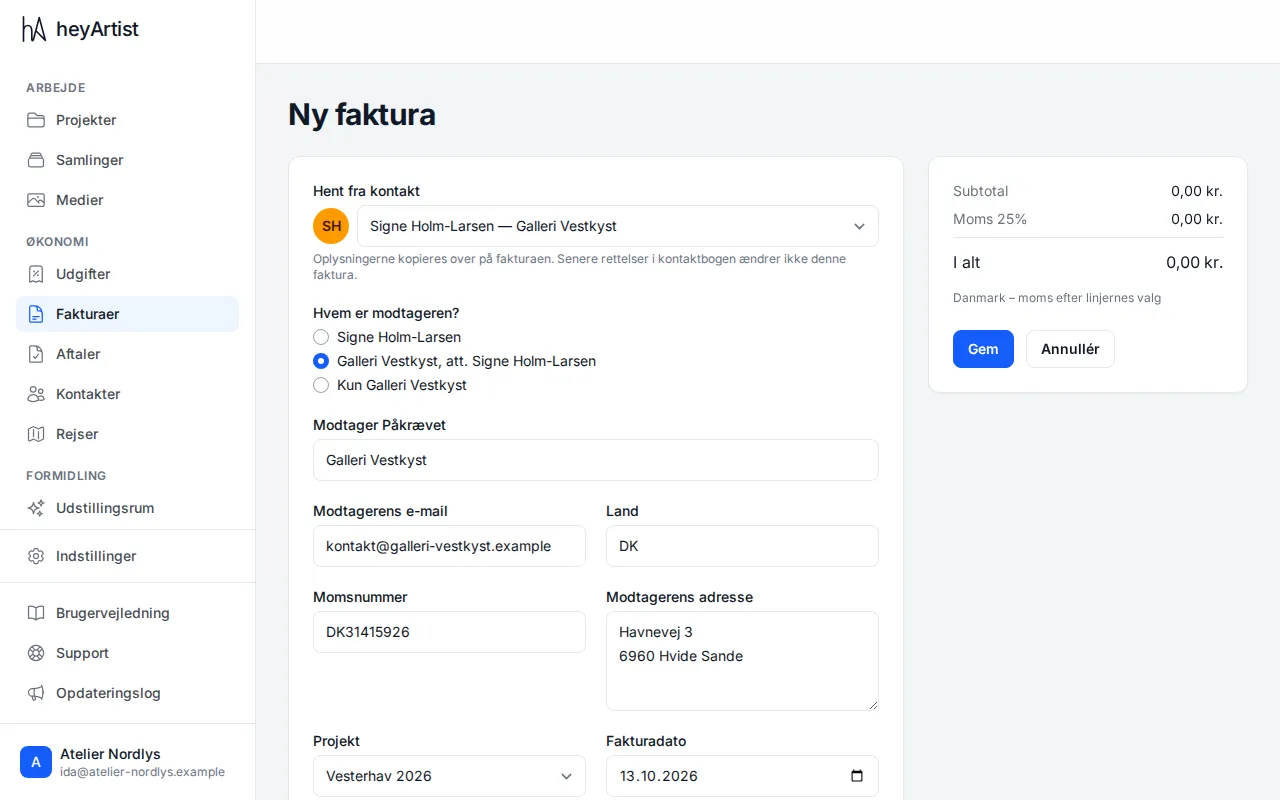
- Click Invoices in the menu, then New invoice.
- Under Fill from contact, choose the recipient from your contacts. If the recipient is not a contact, choose Type the recipient.
When you choose a contact, the name, email, country, VAT number and address are copied onto the invoice. You can change them here. Editing the contact in your contact book later does not change the invoice.
Person or organisation — and attn.
Section titled “Person or organisation — and attn.”If you choose a person who works at an organisation, such as a gallerist, heyArtist asks Who is the recipient?:
- the person, such as Signe Holm-Larsen,
- the organisation, attn. the person, such as Galleri Vestkyst, attn. Signe Holm-Larsen,
- the organisation only, such as Galleri Vestkyst only.
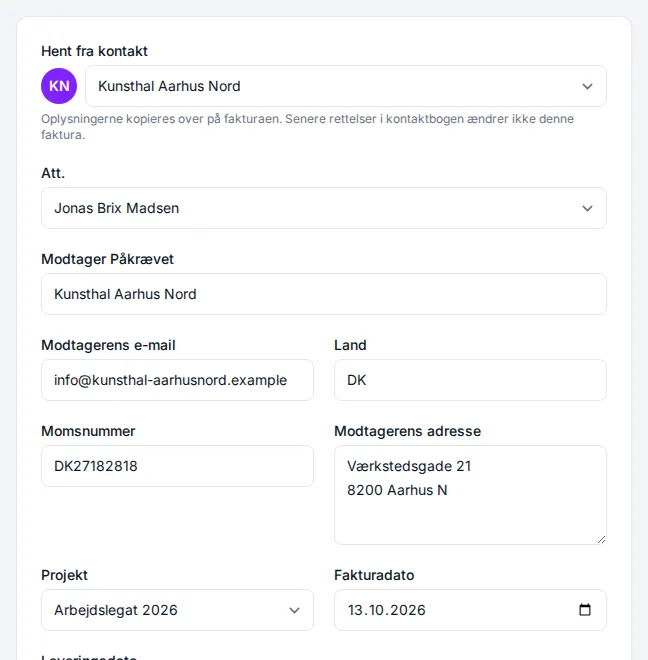
If you choose an organisation, you get the Attn. field, where you can pick one of the people who work there — or No attn.. The person then appears as Attn. below the organisation’s name on the invoice.
Project, dates and VAT
Section titled “Project, dates and VAT”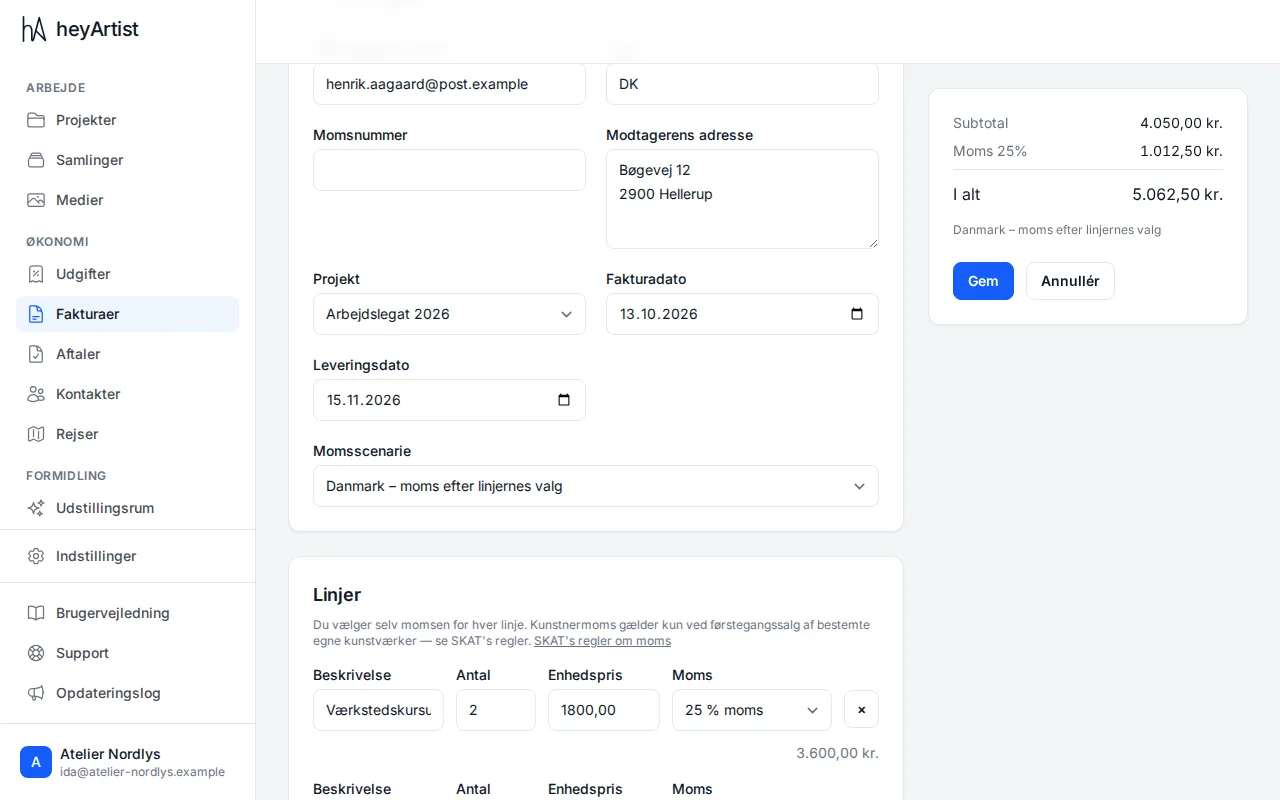
- Project — an invoice always belongs to a project. That way you can see a project’s invoices on the project’s page.
- Invoice date — today, unless you change it.
- Date of supply — if the work or service was delivered on a different day than the invoice date. If it is left empty, the invoice date is printed as the date of supply.
- Tax scenario — when you choose a contact, heyArtist suggests a scenario from the contact’s country and VAT number. It is only a suggestion: check it, and choose another if it does not fit. See VAT on the invoice.
Payment terms and currency come from your invoice settings. The invoice is in the contact’s language if the contact has one; otherwise in the language chosen in the settings.
The lines
Section titled “The lines”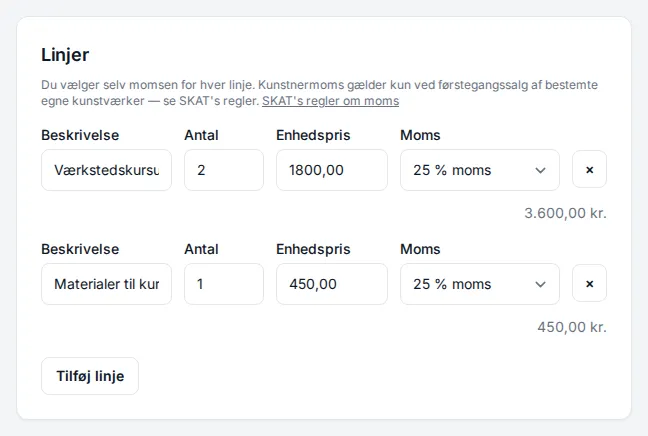
Each line has:
- Description — such as the work’s title, medium and size, or what you did.
- Quantity — decimals are fine, such as 1.5 hours.
- Unit price — the price without VAT.
- VAT — 25% VAT, Artist VAT (25% of 20%) or VAT exempt. You choose it for each line. See VAT on the invoice.
The line’s amount is shown below it. Add line adds another line, and ✕ removes one.
On the right you always see the Subtotal, the VAT and the Total, and at the bottom the tax scenario that will actually be applied.
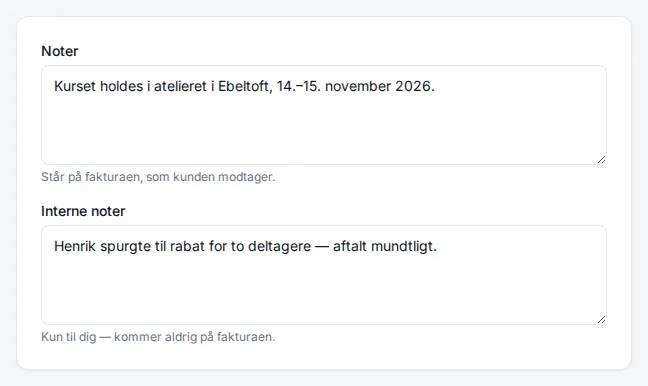
Below the lines you can add:
- Notes — text for the customer, printed on the invoice.
- Internal notes — just for you. They never appear on the invoice or the PDF.
Save the draft
Section titled “Save the draft”Click Save. The invoice is saved as a Draft and appears in the list without a number.
To change it, open it and click Edit invoice. When it is ready, you issue it. See Issuing and sending an invoice.