

Create an artwork
New artwork
Section titled “New artwork”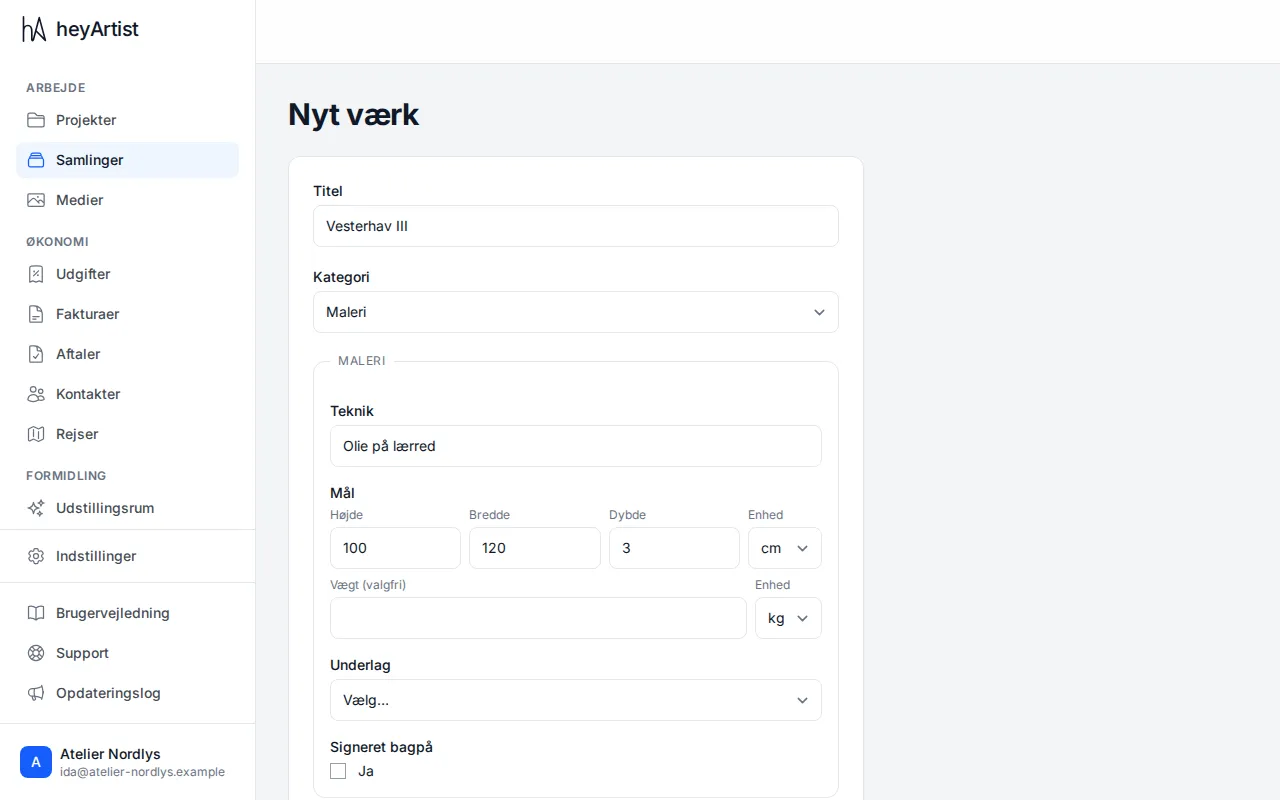
- Click Collections in the menu, then New artwork.
- Write the work’s Title.
- Choose a Category — the artwork type, for example Painting. The type decides which fields you get below it: a painting might have technique, dimensions and support, a print an edition size. You make the fields yourself; see Artwork types and custom fields.
- Fill in the fields. Dimensions has height, width and depth with a unit, and weight if you want it.
- Choose the Project the work belongs to. A work always belongs to a project, so create a project first if you have none.
- Enter the Year and Price. The price is in the account’s currency.
- Choose the Status: Available, Reserved, Sold or Not for sale.
- Click Save.
You add pictures and a description afterwards, when you edit the work. See Pictures and files on an artwork.
When a work is sold
Section titled “When a work is sold”
When you set the status to Sold, the Buyer field appears. Choose the buyer from your contacts. The contact then gets the Buyer relation, so you can see who has bought from you. See Contacts.
The buyer is optional — you can mark a work as sold without choosing one.
The artwork page
Section titled “The artwork page”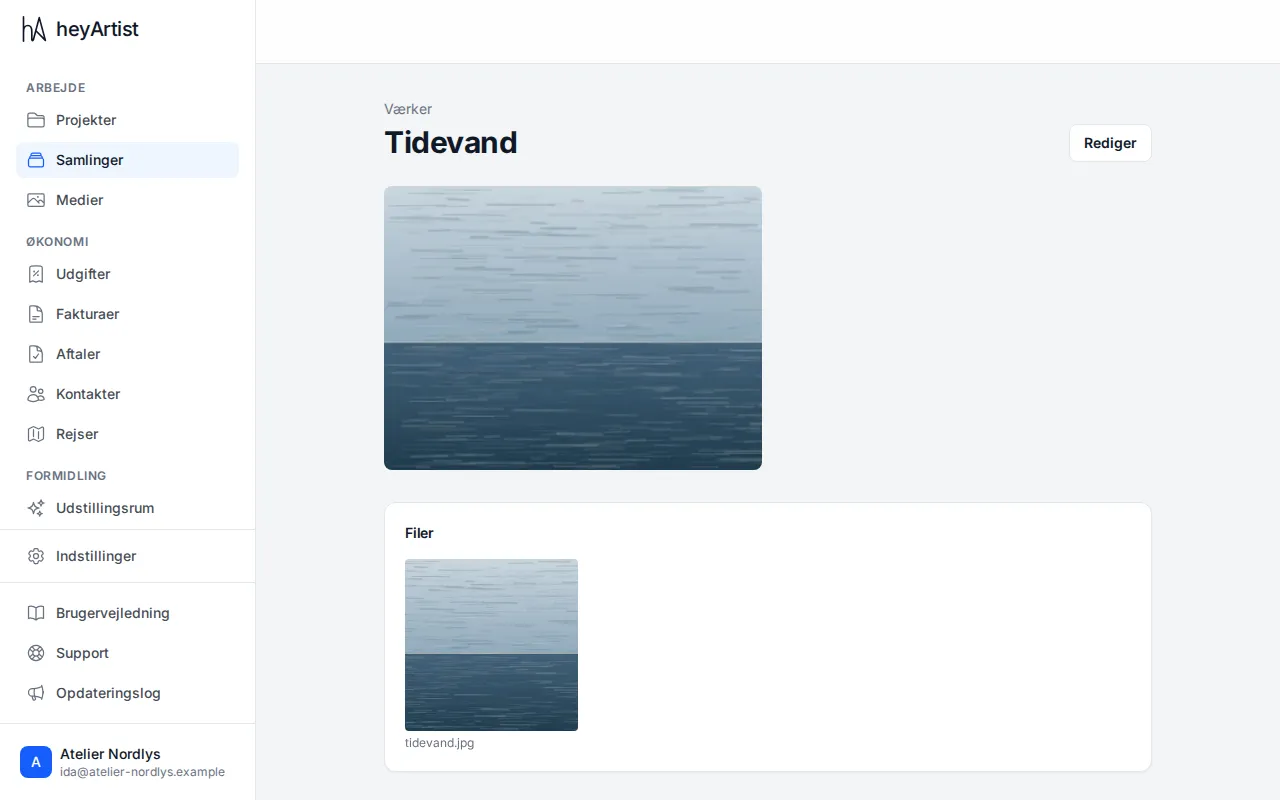
Click a work in the list to see it. At the top are its pictures and files.
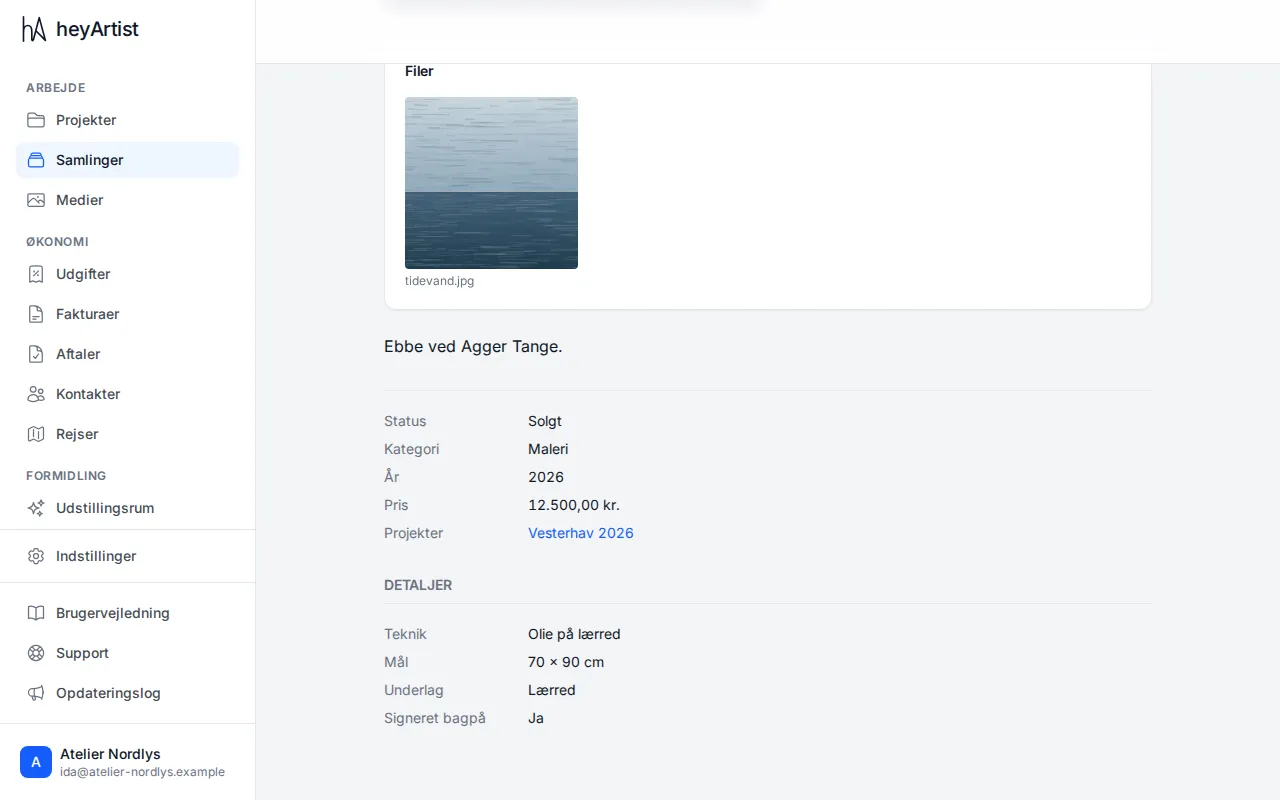
Below the pictures are the description, status, artwork type, year, price and project — and under Details the fields its artwork type has.
Edit or delete an artwork
Section titled “Edit or delete an artwork”Click Edit on the artwork page. Here you can change everything from the form, write a Description, and add pictures and files.
The work’s web address does not change when you change the title.
At the bottom is Delete artwork. The work disappears from the collection, but its pictures are not deleted — they are still in the media library.