

Pictures and files on an artwork
A work can have pictures, video, PDFs, documents and working files. Pictures are made smaller for display automatically, but the original is always kept.
Add files
Section titled “Add files”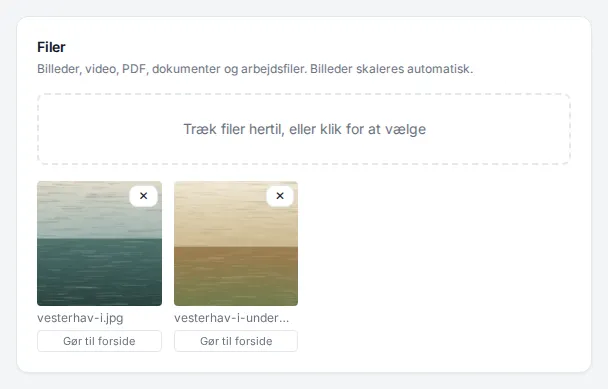
- Open the work and click Edit.
- Find Files.
- Drag the files into the field Drop files here, or click to choose — or click the field to choose them.
The files are saved as soon as they are uploaded. You do not need to click Save for them.
To change their order, drag the files around among each other.
The cover picture
Section titled “The cover picture”The picture shown on the work’s card in the list of artworks is the cover. Click Make cover under the picture you want to use.
Remove a file
Section titled “Remove a file”Click the cross in the corner of the file. heyArtist asks before the file is removed — it is deleted and cannot be brought back.
The same file twice
Section titled “The same file twice”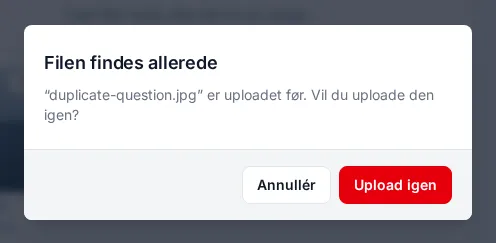
If you upload a file that is already somewhere in the account — on another work, in a journal entry or as a receipt — heyArtist asks: This file already exists.
- Cancel — the file is not uploaded again.
- Upload again — the file is uploaded anyway. In the media library it is marked as uploaded as a duplicate, with a link to the first one.
That is useful when the same picture belongs to two works, or to both the journal and the work.