

Signing in
Sign in with email and password
Section titled “Sign in with email and password”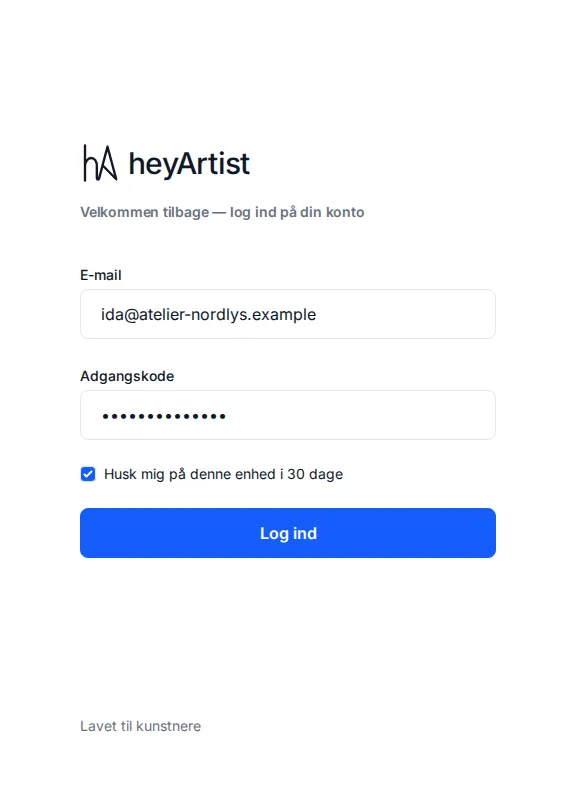
- Enter your email and your password.
- On your own computer or phone, leave Remember me on this device for 30 days ticked. You then stay signed in for 30 days.
- Click Sign in.
On a borrowed or shared computer, untick Remember me. You are then signed out when the browser closes.
If something goes wrong, the page tells you why:
- Email or password is incorrect. Check the spelling, and that Caps Lock is off.
- Your email is not verified yet. You need to confirm your email first. If you received an invitation, that happens when you create your login from it — see The invitation and your login.
Forgotten your password?
Section titled “Forgotten your password?”If you can sign in, you change your password under Settings → Profile. See Profile: name, email and password.
Two-factor authentication
Section titled “Two-factor authentication”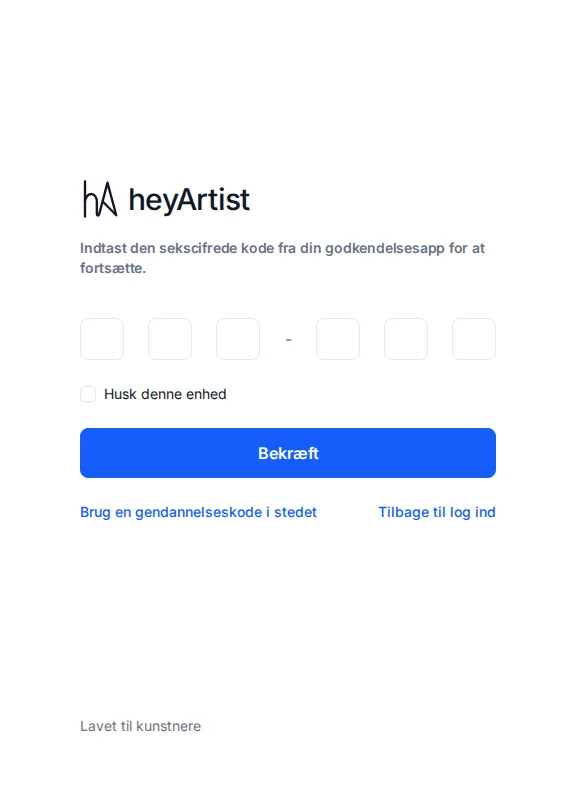
If you have turned on two-factor authentication, heyArtist asks for a code after your password:
- Open your authenticator app (for example Google Authenticator, Microsoft Authenticator or 1Password).
- Enter the six-digit code the app shows for heyArtist. You can also paste the whole code at once.
- The code is sent by itself once the sixth digit is in. You can also click Verify.
Tick Remember this device if you do not want to enter a code every time on this particular computer or phone.
If heyArtist says the code is not right, wait for the next code in the app and try again. The codes change every half minute.
You turn two-factor authentication on under Settings → Security. It applies to you as a person — in every account you belong to. See Security: two-factor and passkeys.
Use a recovery code
Section titled “Use a recovery code”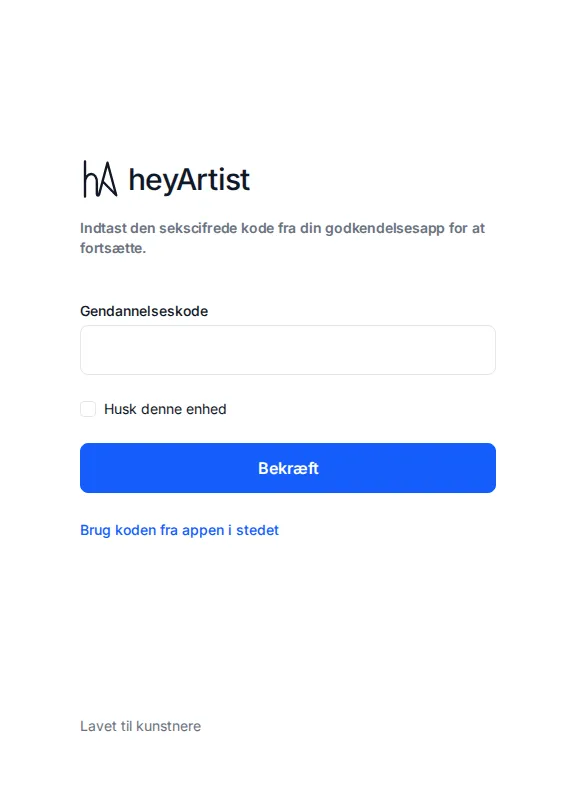
If your phone is not at hand, you can use one of your recovery codes instead:
- Click Use a recovery code instead.
- Enter one of the codes and click Verify.
Each recovery code works only once. You got the codes when you turned on two-factor authentication. You can make new ones under Settings → Security — the old ones then stop working.
To go back to the code from the app, click Use the code from your app instead.
Sign out
Section titled “Sign out”Click the account name at the bottom of the menu and choose Sign out.
The menu with Sign out is currently only available on a computer or a large tablet. On a phone there is no sign-out button — if you borrow a phone, sign in without Remember me and close the browser afterwards.