

Business and VAT
Settings → Business holds the details used on invoices, in exports and on receipts. It is the tab that opens when you click Settings.
The screenshots show heyArtist in Danish; the labels are named in English here as they appear when you switch the app to English.
Name and entity type
Section titled “Name and entity type”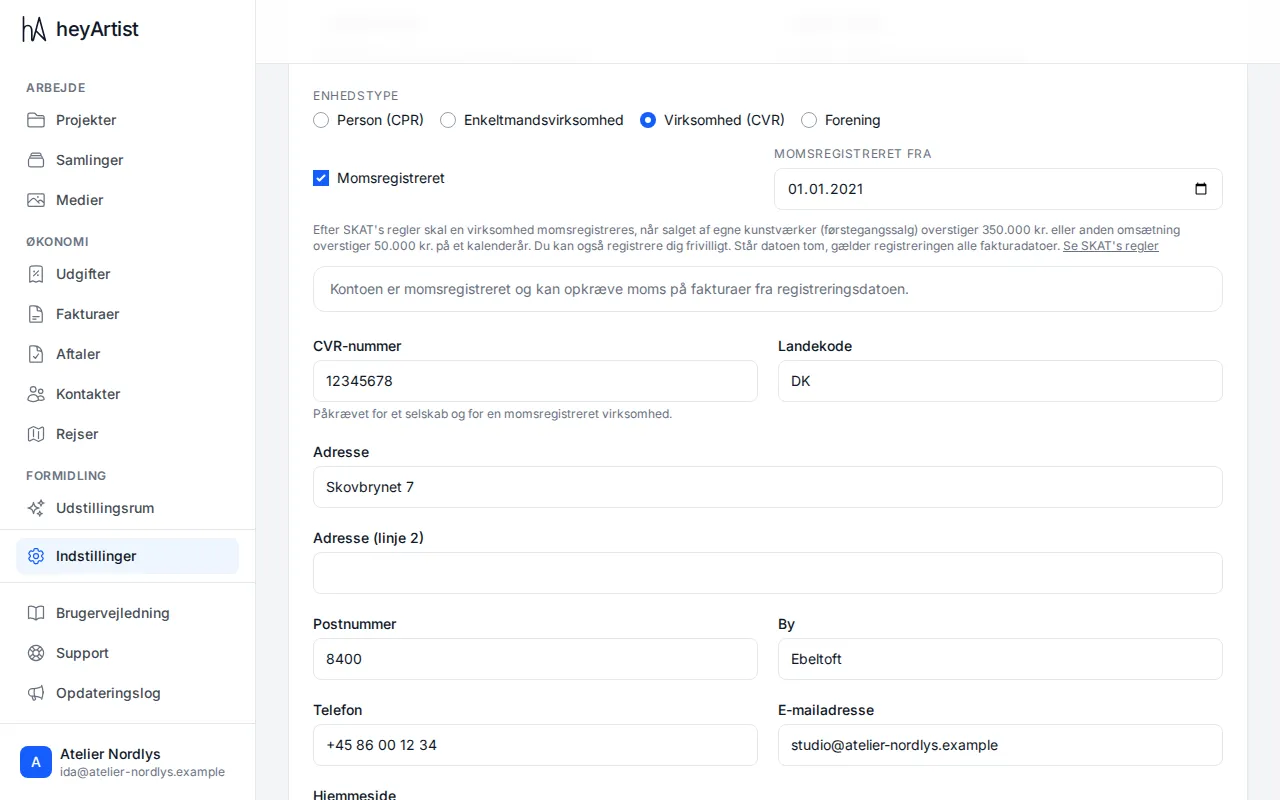
- Business / Artist name — the name shown on invoices and in exports.
- Handle — the account’s short name, such as atelier-nordlys. 3–30 characters: lower-case letters, digits and hyphens. It is part of the address of your showrooms.
- Entity type — how you run your practice:
- Individual (CPR) — you sell as a private person.
- Sole trader.
- Company (CVR).
- Association.
VAT registration
Section titled “VAT registration”Tick VAT registered if the account is registered for VAT with SKAT, and enter the date in VAT registered from. If the date is empty, the registration applies to every invoice date.
Under the fields it says what this means for your invoices:
- VAT registered — you can charge VAT on invoices dated from the registration date.
- Not VAT registered — every invoice is issued without VAT. Under SKAT’s rules, only a VAT-registered business may charge VAT.
The rules in heyArtist:
- An Individual (CPR) can have neither a CVR number nor a VAT registration. If you switch to Individual, heyArtist points this out.
- The CVR number must be filled in for a Company (CVR) and for a VAT-registered account.
- heyArtist never registers you and never chooses the VAT for you. You tick the box, and you choose the VAT on each invoice line.
SKAT’s limits
Section titled “SKAT’s limits”Under SKAT’s rules you must register for VAT when, in a calendar year, you sell:
- your own artworks (first-time sales) for more than DKK 350,000, or
- anything else for more than DKK 50,000.
You can also register voluntarily. If the account is not VAT registered and your sales come close to one of the limits, heyArtist shows a message with the figures. They are based on issued and paid invoices in kroner and on the VAT you chose on each line, and are for information only. Click See SKAT’s rules to read more at SKAT.
See VAT on the invoice.
Address and contact
Section titled “Address and contact”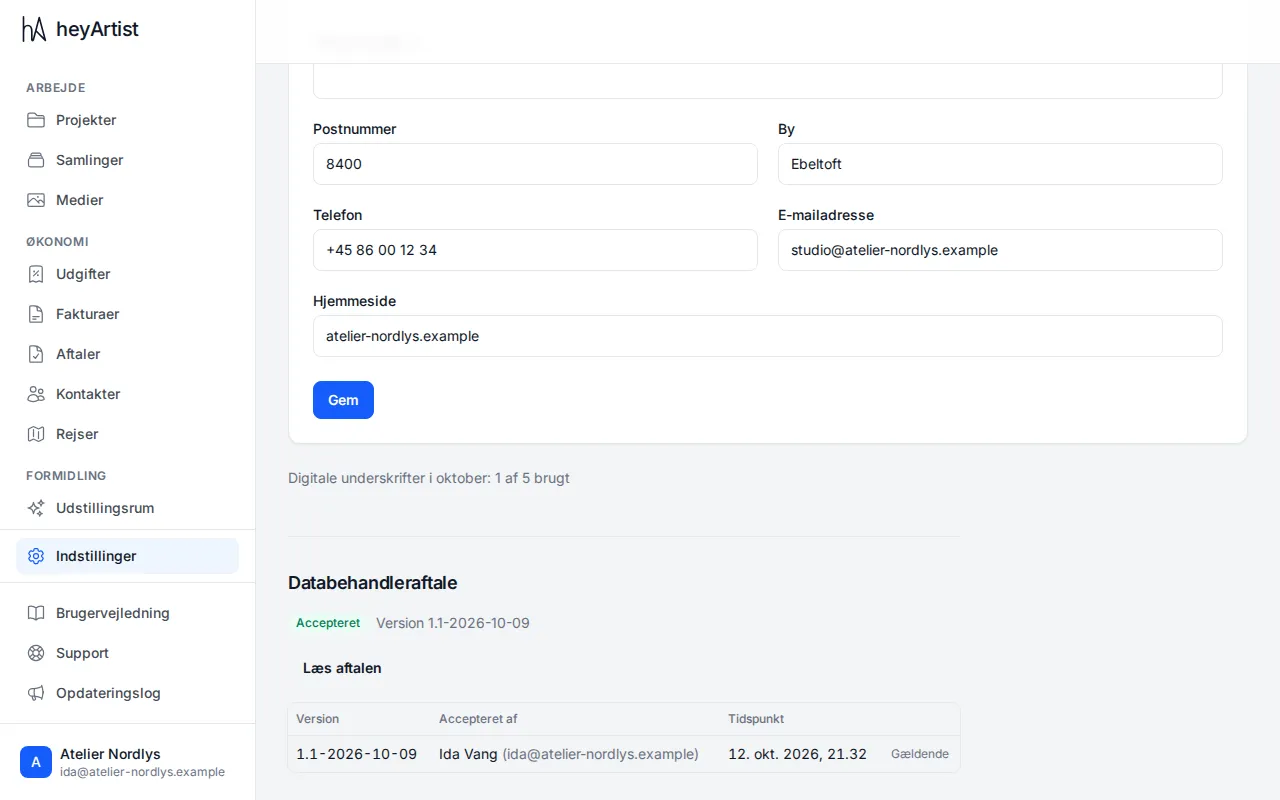
Fill in CVR number, Country code, Address, Postal code, City, Phone, Email address and Website, and click Save.
The seller details on the invoice itself are set under Settings → Invoicing. See Before you invoice.
Below the form
Section titled “Below the form”- Digital signatures — how many of the month’s digital signatures the account has used, such as 1 of 5 used. See Digital signing.
- Data processing agreement — whether the current version is accepted, and who accepted which version when. Click Read the agreement to read or print it. See The data processing agreement.
- Your data — download everything in the account as one zip file. See Download all your data.