

Fill in and finalise
A new contract starts as a draft. You fill it in at your own pace — it is saved as you type — and finalise it when it is ready to be signed.
The screenshots show heyArtist in Danish; the labels are named in English here as they appear when you switch the app to English.
Fill in the contract
Section titled “Fill in the contract”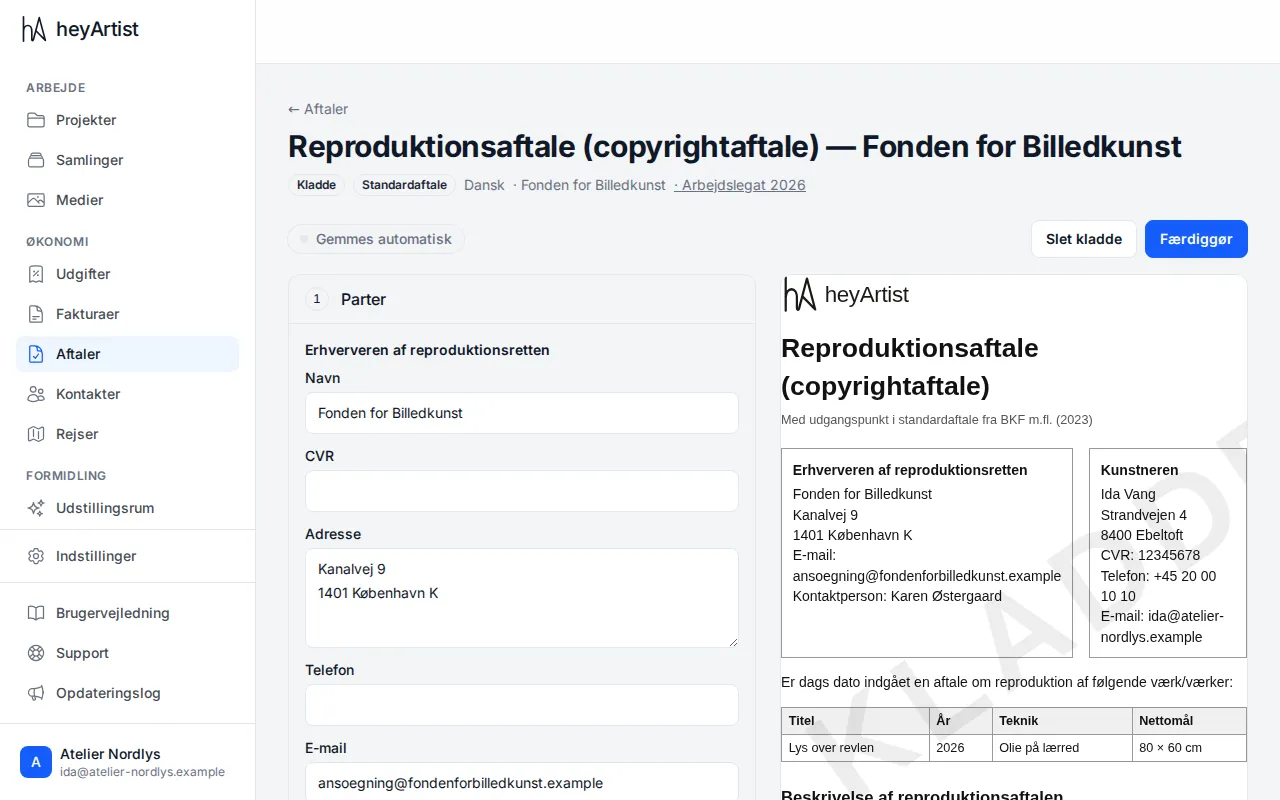
The contract’s sections are listed on the left, numbered. Click a section to open it. On the right you see the contract as it will be printed, and it changes as you type. While KLADDE (draft) runs across it, it has not been finalised.
- Parties always comes first: name, CVR, address, phone, email and contact person for each party. The other party’s details come from the contact, and yours from your business details. Correct them if they are wrong.
- The other sections depend on the agreement: fee, commission, period, insurance or copyright, for example. Fields marked * must be filled in. A number next to a section shows how many fields are missing.
- Some sections are optional. They have a tick box and are only included when you tick it.
- Amounts are written as, for example, 12.500 or 12.500,50 in a Danish contract. Some amounts are proposed from the figures you have already entered. They then say Proposed from your figures — you can change it.
At the top you can see whether the contract is saved: Saves automatically, Saving… and Saved at 10:42. You never need to press anything to save. If it says Not saved, click Try again.
On a phone you switch between Fill in and Preview at the top.
The works
Section titled “The works”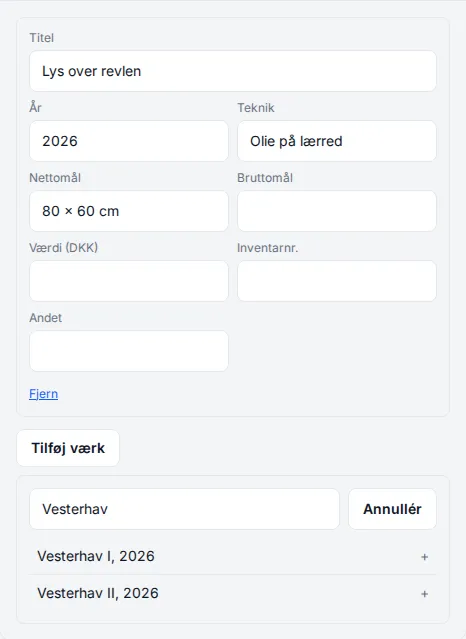
Agreements on sales, loans and reproduction have a list of works. For each work you can enter the title, year, technique, sizes, value, inventory number and anything else.
- Click Add a work to type a work in yourself.
- Click From the Værkliste to fetch one of your works from Collections. Search for the title and click the work. The title and year are filled in for you, and the price becomes the value when it is in the contract’s currency. You add the technique and sizes yourself.
- Click Remove under a work to take it out of the contract.
Finalise the contract
Section titled “Finalise the contract”When the contract is filled in, click Finalise.

If anything is missing, the contract is not finalised. Instead you see a list of the fields to fill in. Click a field in the list to go straight to it.
When everything is filled in, you are asked whether you want to finalise. When you confirm:
- the version is locked, so it cannot be changed,
- a PDF of the contract is made,
- the status becomes Ready.
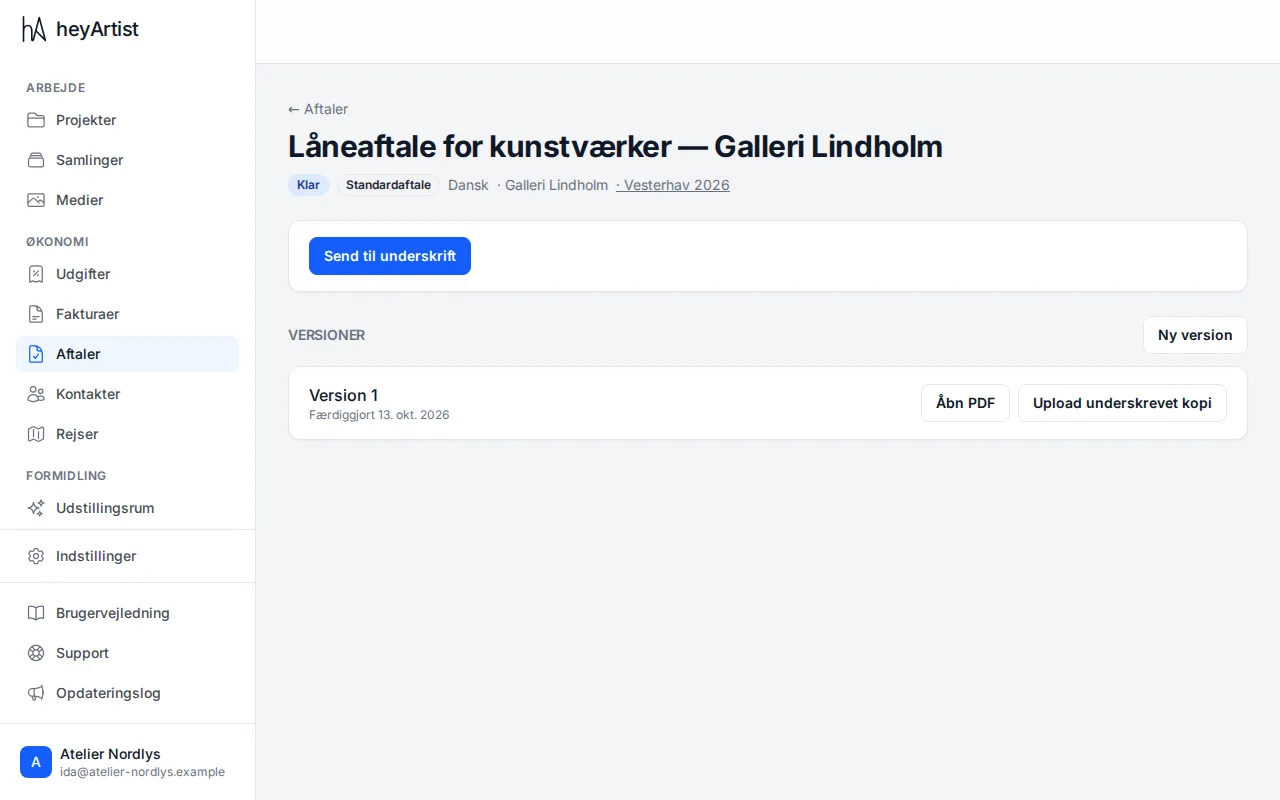
Under Versions the finished version is listed with its date. Click Open PDF to view, print or save the contract. If it says the PDF is being made, wait a moment — the page updates itself.
Now the contract can be signed: on paper or digitally.
New version
Section titled “New version”A finalised contract cannot be edited. If something needs to change — before or after it is signed — click New version.
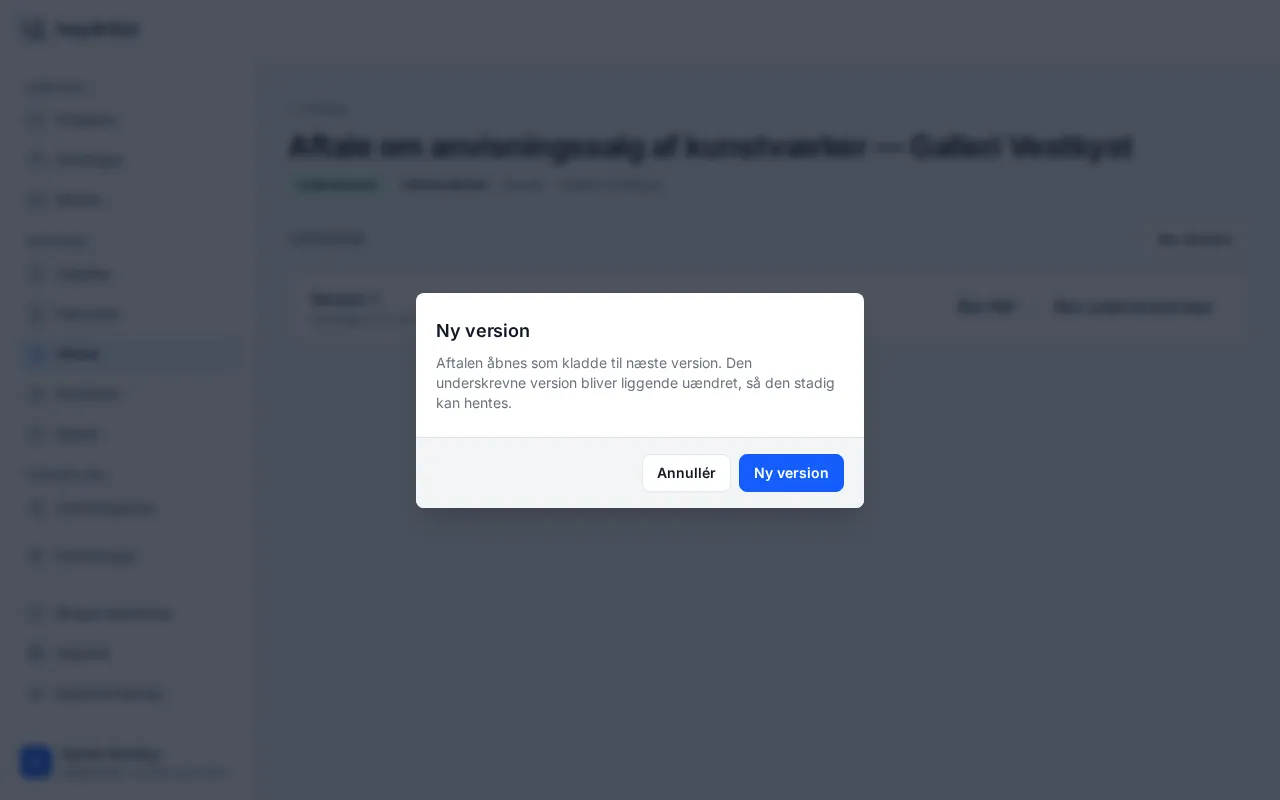
The contract opens as a draft of the next version, with everything you wrote last time. Change what needs changing and finalise again. If the contract is signed, you are asked first. The signed version stays unchanged under Versions, so it can still be downloaded.
While a contract is out for digital signature, you cannot make a new version. Cancel the signing first.
Delete a draft
Section titled “Delete a draft”A contract that has never been finalised can be deleted: click Delete draft at the top. This cannot be undone. A finalised contract cannot be deleted — it has a version that must stay on record.